
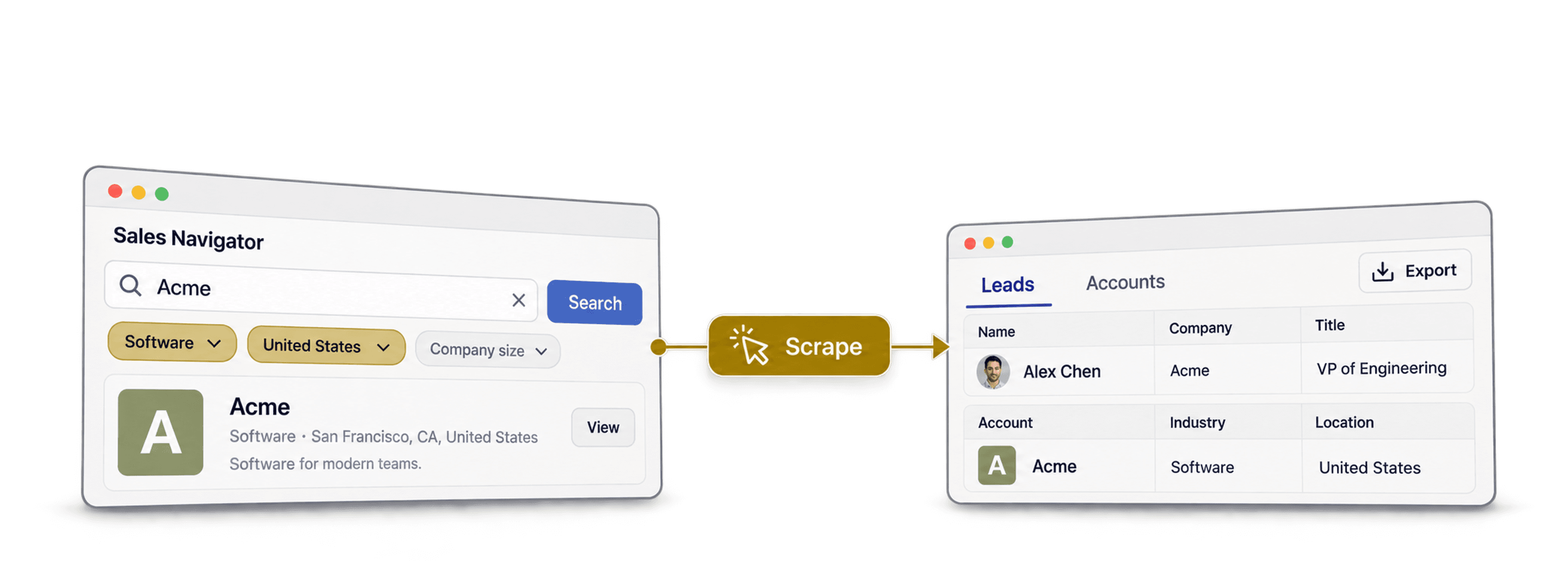
Datablist can import leads from a Sales Navigator search URL and companies from an account search URL. Its default mode runs without your LinkedIn cookie. An optional mode uses your own LinkedIn account for lead searches, but does not support company searches. Choose the mode before building your search because the supported filters and credit cost differ.
This guide covers the search URL, the 2,500-result limit, both modes, and what to do with the imported list.
📌 Summary For Those In a Rush
What this article covers: Importing Sales Navigator leads and accounts with the default account-free mode, plus when the optional account mode applies
- Inputs: a live Sales Navigator lead or account search URL (regular LinkedIn search URLs work for the lead flow, too)
- Outputs: a clean lead list (50+ fields per lead, emails where Datablist finds them) or an account list with company name, domain, industry, employee range, location, and public contact fields
- Cost: 20 credits per imported lead or account in the default mode; 10 credits per lead when using your LinkedIn account
Mode choice: The default mode needs a live search URL and no LinkedIn cookie. The optional mode requires your
li_atcookie and is available only for lead searches.
What This Guide Will Cover
- What Sales Navigator Scraping Actually Means
- Common Ways To Scrape Sales Navigator
- How Datablist Scrapes Sales Navigator Without Connecting Your LinkedIn Account
- How To Configure a Sales Navigator Search Correctly
- How To Scrape Leads From Sales Navigator (Step-by-Step)
- How To Scrape Accounts And Companies From Sales Navigator (Step-by-Step)
- What To Do After Scraping Sales Navigator Data Inside Datablist
- Frequently Asked Questions About Sales Navigator Scraping
What Sales Navigator Scraping Actually Means
Sales Navigator scraping covers two workflows: importing people from a lead search and importing companies from an account search. Many Sales Navigator scrapers cover only one of them.
What Sales Navigator Scraping Refers To
Since Sales Navigator does not ship a clean CSV export, Sales Navigator scraping is the only practical way to get Sales Navigator data out without copy-pasting profiles or accounts by hand.
When people talk about Sales Navigator scraping, they usually mean scraping leads. But the same idea also applies to companies: you can scrape Sales Navigator account searches to pull company data, not just profile details.
📘 Scraping Sales Navigator Leads vs. Accounts Explained
Think of it as two separate workflows that serve different objectives:
- Leads come from the Leads tab and are useful for building lead lists, enriching CRM records, and preparing outbound campaigns.
- Companies come from the Accounts tab and are useful for ICP research, ABM lists, territory planning, and company enrichment.
What Data You Can Pull Out Of Sales Navigator
Sales Navigator data extraction for leads returns three groups of fields per profile:
- Personal: first name, last name, full name, LinkedIn URL, Sales Navigator URL, location, number of connections, education history
- Professional: job title, headline, summary, last position start and end dates, open-to-work flag
- Company: company name, domain, industry, employee range, founded year, LinkedIn URL
Logically, scraping sales navigator accounts returns only company-level fields: Company name, company domain, description, founded year, LinkedIn URL, LinkedIn ID, industry, specialties, employee range, number of employees, location, address, public email, and public phone.
What you will not get from any Sales Navigator scrape: private email addresses, mobile phone numbers, or anything that you can’t see on the LinkedIn app.
Common Ways To Scrape Sales Navigator (And Where Each One Breaks)
Most people do not start with a clean scraping strategy. They start with urgency: a campaign needs leads, the list sits inside Sales Navigator, and there is no native CSV export button.
That urgency usually pushes them toward one of four options: manual copy-paste, Chrome extensions, cookie-based scrapers, or outsourced exports. Each one can work in a narrow case. Each one also breaks in a different way.
Option 1: Manual Copy-Paste From Sales Navigator
Manual copy-paste avoids automated requests from your LinkedIn session. You open each result, copy the visible fields, paste them into a spreadsheet, and repeat.
The problem is scale. Copying a large search result one profile at a time takes repeated manual work, and the output is limited to the fields you copy. A structured import is easier to filter and review.
Option 2: Chrome Extension Scrapers
Chrome extension scrapers are the opposite trade-off. They are fast, easy to install, and usually promise a CSV in a few clicks.
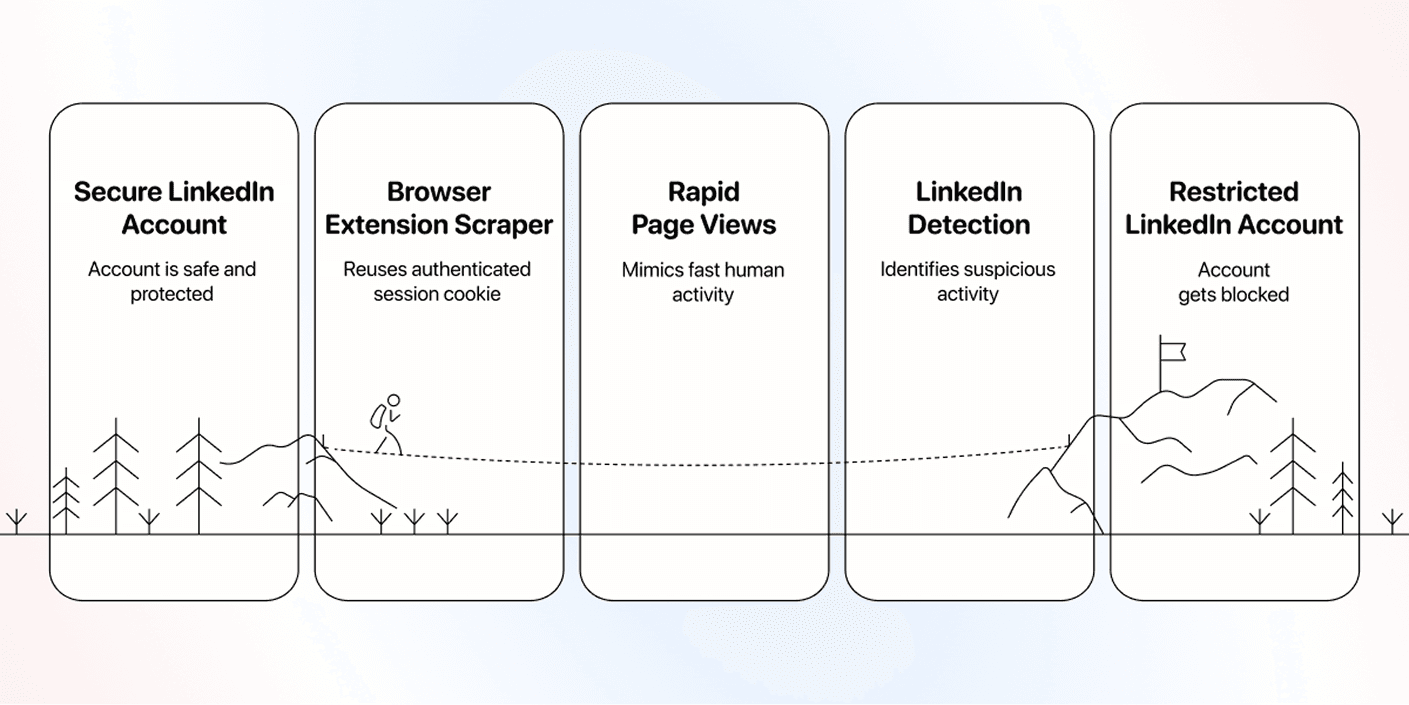
The hidden cost of using a browser is extension account exposure. A Chrome extension does not scrape Sales Navigator from a separate environment. It runs inside your browser, on top of the LinkedIn session you already opened.
Every search, scroll, and export action is tied back to your account. That is why this option looks convenient at the start, but becomes dangerous once volume increases.

Option 3: Cookie-Based Sales Navigator Scrapers
Cookie-based scrapers skip the extension install, but they keep the same core risk. Instead of running inside your browser, they ask you to copy your LinkedIn session cookie into their tool.
Sharing a session cookie gives another tool access to an authenticated LinkedIn session. Consider that access before choosing an account-based scraper.
Option 4: Outsourced Sales Navigator Scraping
Outsourced exports move the work to a freelancer, VA, or lead generation service. This can make sense for some people, but if you hire the wrong freelancer, you’ll get a messy list just because they tried to save on operational costs.
And also, the risk problem does not disappear. Someone still has to scrape Sales Navigator through a logged-in account. The only difference is whose account carries the risk.
📘 Manual Copy-Paste Is Safe, But It Does Not Scale
If your list is under 100 leads, manual copy-paste can be good enough. Past that point, the hours add up faster than the tool cost, and the output is still weaker than a structured scrape.
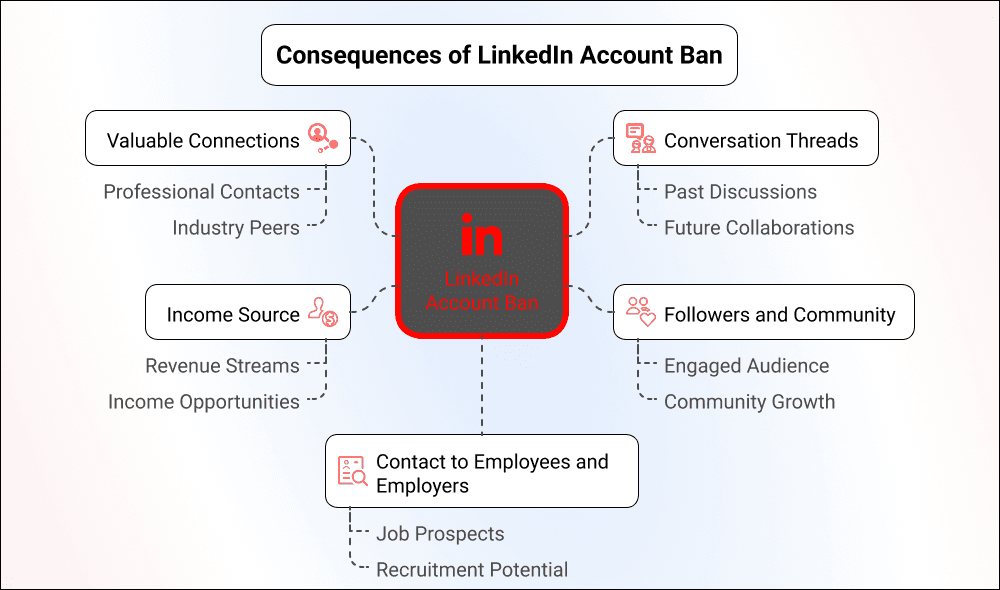
How Chrome Extensions And Cookie-Based Scrapers Put Your LinkedIn Account At Risk
The risky methods share one pattern: they reuse a logged-in LinkedIn session. That session can come from your browser, your cookie, or a freelancer's account. LinkedIn still sees activity tied to a real account.
From LinkedIn's side, a Chrome extension scraper looks like a person clicking impossibly fast. The same account, the same cookie, the same IP address, suddenly running searches, opening profiles, and exporting data at machine speed.
Automated requests through a logged-in account can lead to restrictions under LinkedIn's policies. The outcome depends on the activity and account.
How Datablist Scrapes Sales Navigator Without Connecting Your LinkedIn Account
Datablist.com is an AI-powered spreadsheet for building lead lists at scale.
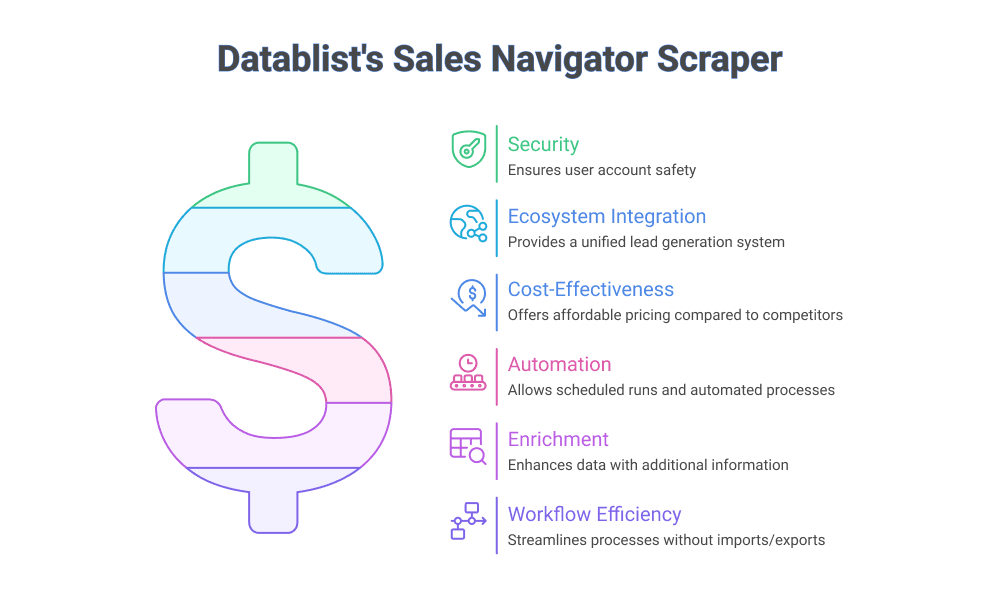
The Sales Navigator Scraper runs on Datablist's infrastructure. In its default mode, it uses a live search URL without asking for your LinkedIn cookie. The optional Scrape using your LinkedIn account mode requires your li_at cookie and supports lead searches only.
How The Sales Navigator Scraper Works
In the default mode, paste a live Sales Navigator or regular LinkedIn search URL. For the optional account mode, select Scrape using your LinkedIn account and provide your li_at cookie. Account searches are available only in the default mode.
The import runs on Datablist's infrastructure rather than in your browser. Check the search type and estimated credits in the settings before starting.
How To Configure a Sales Navigator Search Correctly
When you scrape Sales Navigator, the tool only sees the search you give it. If the search is messy, too broad, or built in the wrong tab, the export will be messy too.
So before you scrape anything, make one decision: Do you want people or companies?
That sounds basic, but it changes everything: the Sales Navigator tab you use, the filters you apply, the URL you copy, and the data Datablist scrapes for you.
Start With The Output: Leads Or Accounts?
Use a lead search when you want people to contact. Use an account search when you want companies to research, enrich, or target later.
The clean split:
- Lead search: people, job titles, profile URLs, current companies, professional history, education history, emails, etc.
- Account search: company names, domains, industries, headcount, locations, public contact fields, etc.
📘 Leads And Accounts Are Not Two Versions Of The Same Search
A lead search answers: “Who should I contact?” An account search answers: “Which companies match my market?” Pick the wrong one, and the export will be wrong before Datablist even runs.
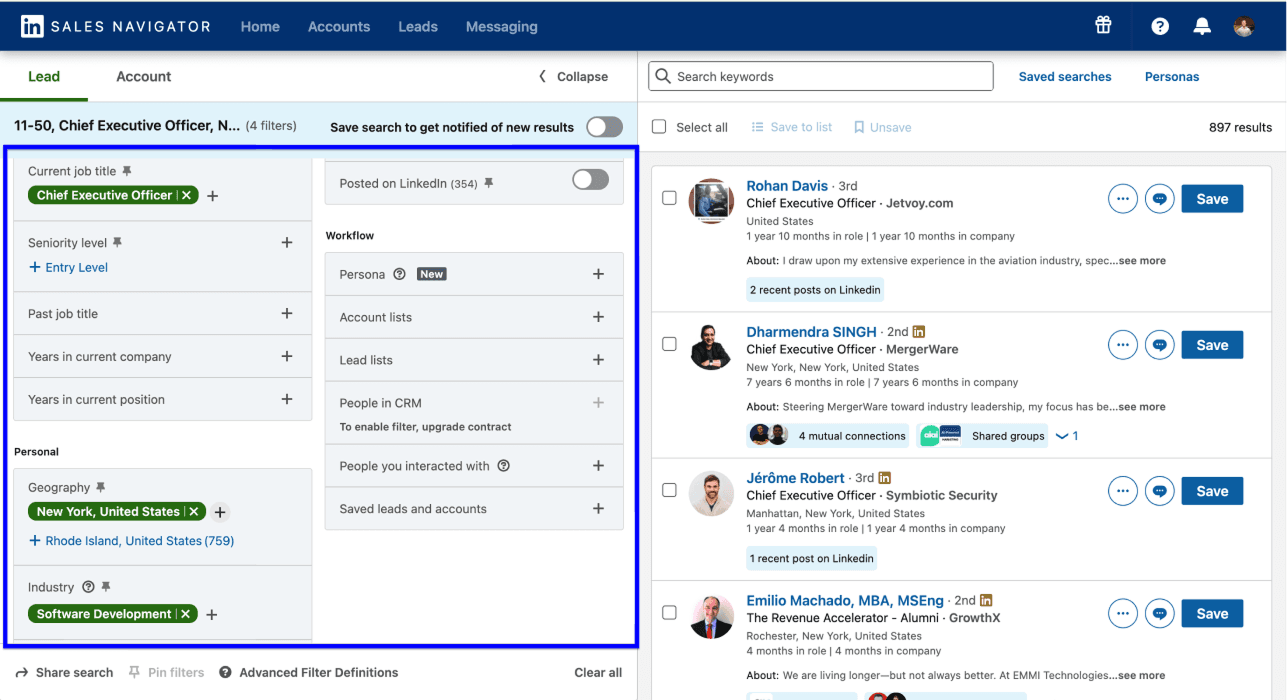
How To Configure a Sales Navigator Lead Search
Start in the Leads tab when the final list should contain people.
A good lead search usually starts with the person, then narrows by company context:
- Person filters: job title, seniority, function, geography, years in current role
- Company filters: company headcount, industry, company location, company growth signals
Do not start too broad. “VP Sales in the United States” might look useful, but it usually creates a list that needs more data cleaning than scraping. A better search has a sharper description behind it, e.g., VPs of Sales at 50-200 person B2B software companies in the US. That sentence is specific enough to become a lead list.
How To Configure a Sales Navigator Account Search
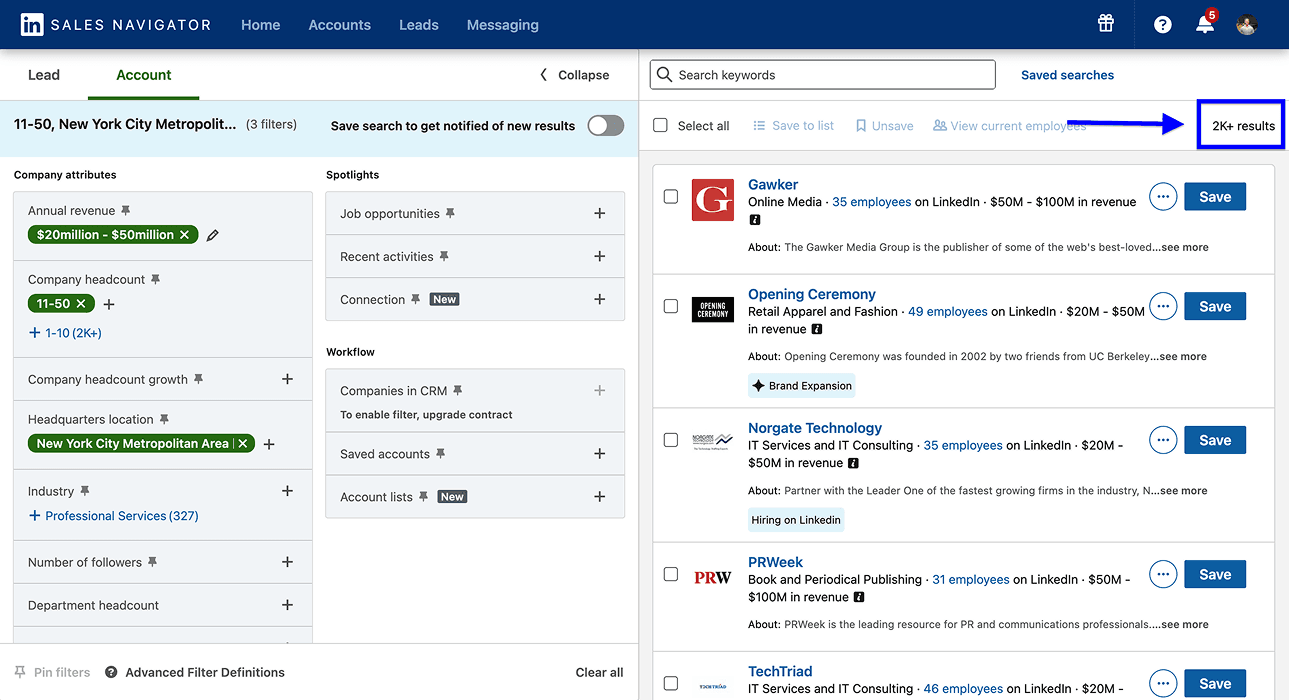
Start in the Accounts tab when the final list should contain companies.
That is usually the right path for ABM lists, ICP research, territory planning, or company enrichment. You are not trying to find the buyer yet; you are trying to build the company universe first.
Start with the filters that define the company profile:
- Industry: what category the company sells in
- Headcount: the size range that matches your ICP
- Geography: headquarters or operating region
- Growth signals: headcount growth, department headcount, funding, or technologies used
The mistake is making the account search too generic. “Software companies in the US” is not a segment; it is a starting point. “B2B software companies in the US with 50-200 employees with 10% headcount growth” is much closer to a scrapeable account list.
📘 Account Search Comes Before Contact Search
If you know the type of company you want but not the person yet, scrape accounts first. Build the company list, enrich it, then find the right contacts inside those companies.
Which Sales Navigator Filters Datablist Can and Cannot Scrape
In the default mode, Datablist must be able to recreate the search without access to your LinkedIn account. Build it with filters that describe the target personas or markets, not how they are related to you.
Account-tied filters depend on LinkedIn relationship data, so the default mode cannot recreate them. For lead searches that need account context, inspect the optional account mode and its cookie requirement. Company searches still require the default mode.
Use filters like:
- Industry
- Company size
- Job title
- Seniority
- Headcount growth
- …etc.
Avoid filters like:
- Viewed your profile recently
- Viewed Company Page recently
- Saved to list
- In your CRM
- and any other recent activity filters tied to your account
Save The Search URL, Not The Saved Search
When you configure your search is configured and ready, copy the live URL from the browser address bar.
Do not copy a saved-search URL. Saved searches are useful inside Sales Navigator because LinkedIn can notify you when new results appear. But they are tied to your logged-in session, so they are not the clean handoff Datablist needs.
If you run the same scrape every month, save the filter recipe somewhere else:
- target tab: Leads or Accounts
- geography
- industry
- title or seniority filters
- company size
- any extra segmentation rules
Then rebuild the search, copy the live URL, and pass that URL into Datablist.
Once the search URL is clean, the rest is straightforward: lead search URLs go into the lead scraping flow; account search URLs go into the account scraping flow.
How To Scrape Leads From Sales Navigator (Step-by-Step)
Scraping Sales Navigator leads with Datablist happens in two phases:
- Phase 1: Configure the Sales Navigator lead search and copy the live search URL.
- Phase 2: Paste the URL into Datablist, choose the output fields, and run the scrape.
Phase 1: Configure The Sales Navigator Lead Search
This part still happens inside Sales Navigator. No extension, no cookie, no scrape yet. You are only building the search that Datablist will later read.
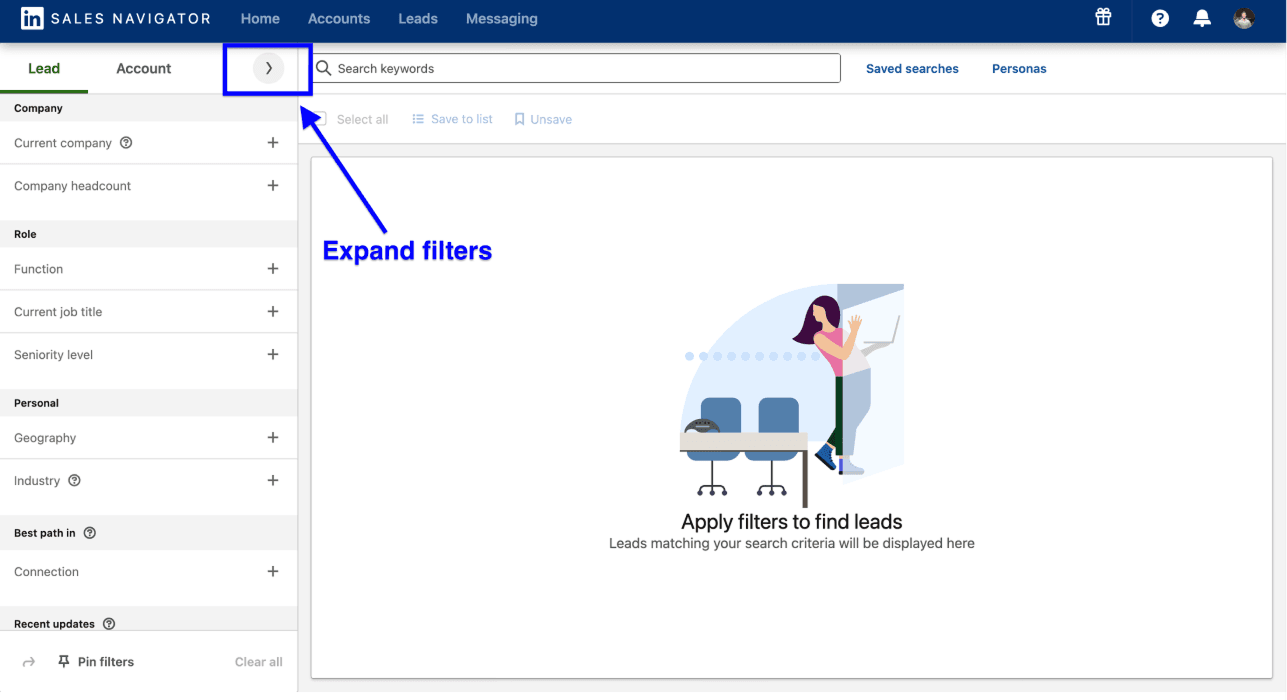
Step 1: Open Sales Navigator And Expand All Filters
Open the Leads tab in Sales Navigator, then expand the full filter panel.
This matters because the visible filter bar only shows part of the search logic. The full panel is where you control the actual segment: title, seniority, geography, company size, industry, years in current role, and other filters that decide who appears in the results.
Step 2: Use Sales Navigator Filters To Narrow Down Leads
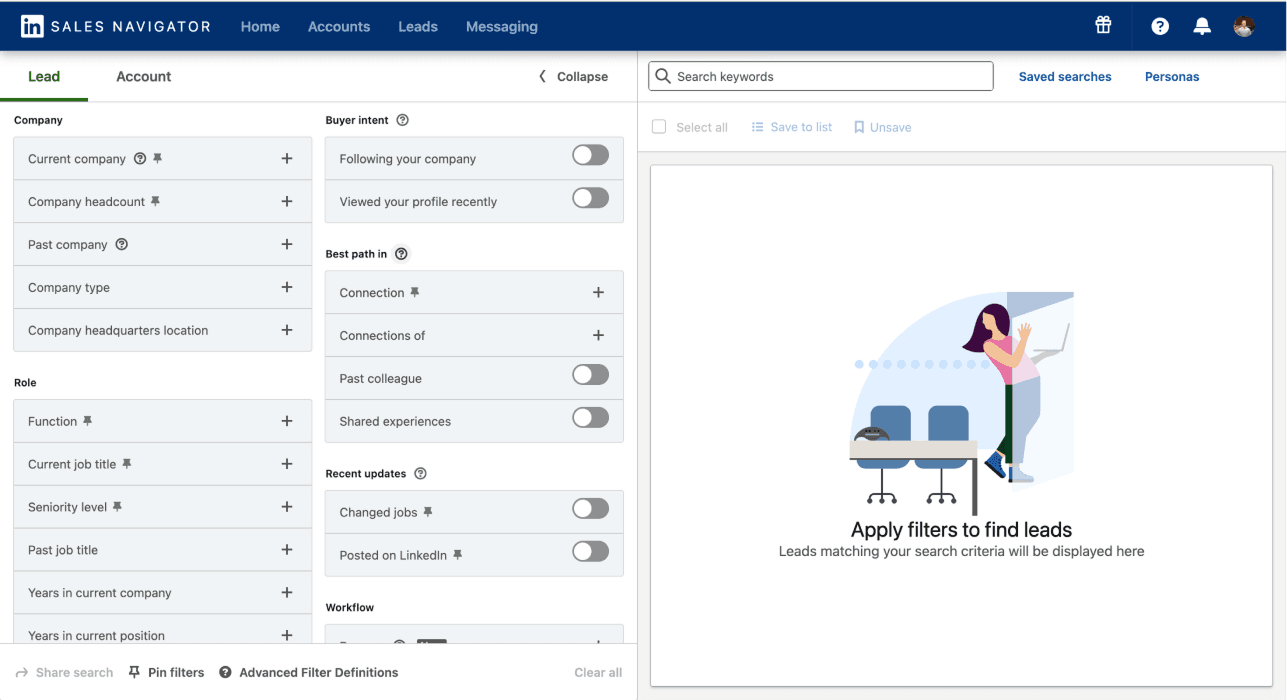
Start with the person you want to reach, then add company context.
A clean lead search usually combines:
- Person filters: job title, seniority, function, geography, years in current role
- Company filters: company headcount, company industry, company location, growth signals
In the default mode, avoid account-tied filters such as saved lists, CRM membership, profile views, or relationship data. The optional account mode can use account context for lead searches, but requires your li_at cookie.
Step 3: Break Down Searches That Exceed 2,500 Results
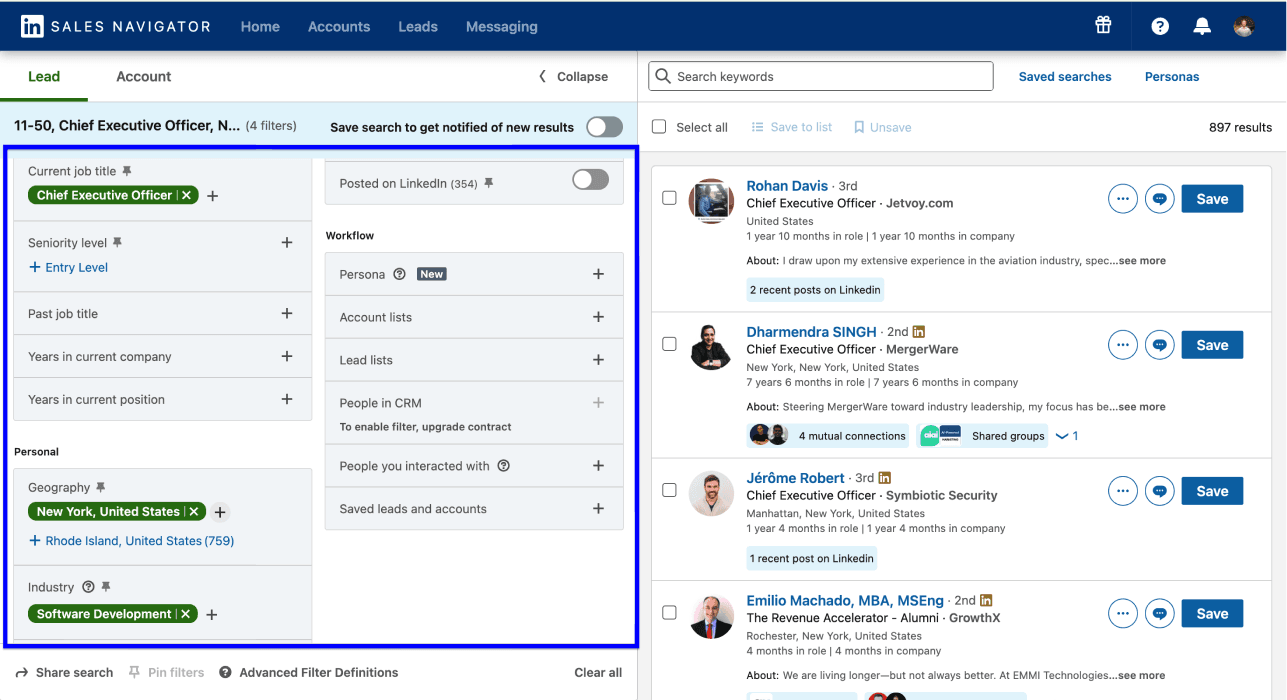
If the result count goes above 2,500, the search is too broad for one clean scrape.
Do not treat that as a Datablist issue. It is a Sales Navigator result ceiling. The clean fix is to split the search into smaller segments: by state, region, industry sub-category, company size band, or years in current position.
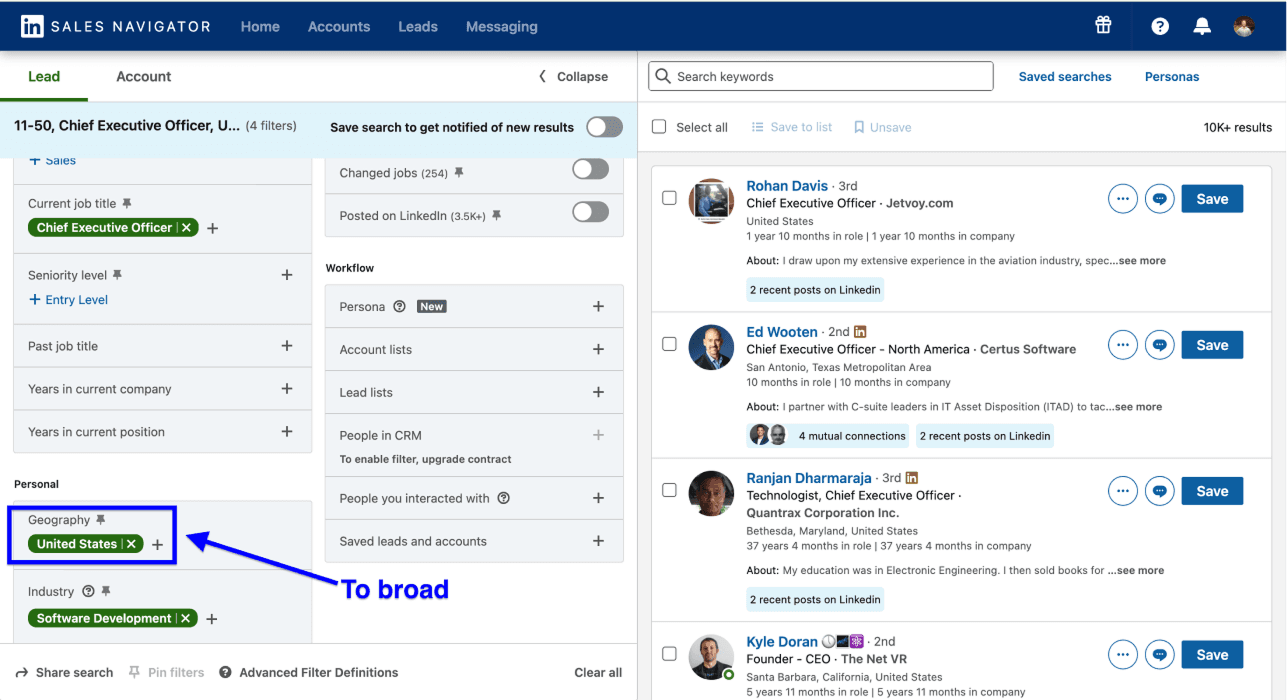
For example, a search for CEOs at US software companies can split cleanly by state, industry sub-category, or years in current position. The goal is not to bypass Sales Navigator. The goal is to create cleaner segments that Datablist can scrape without missing rows.
Step 4: Copy The Search URL
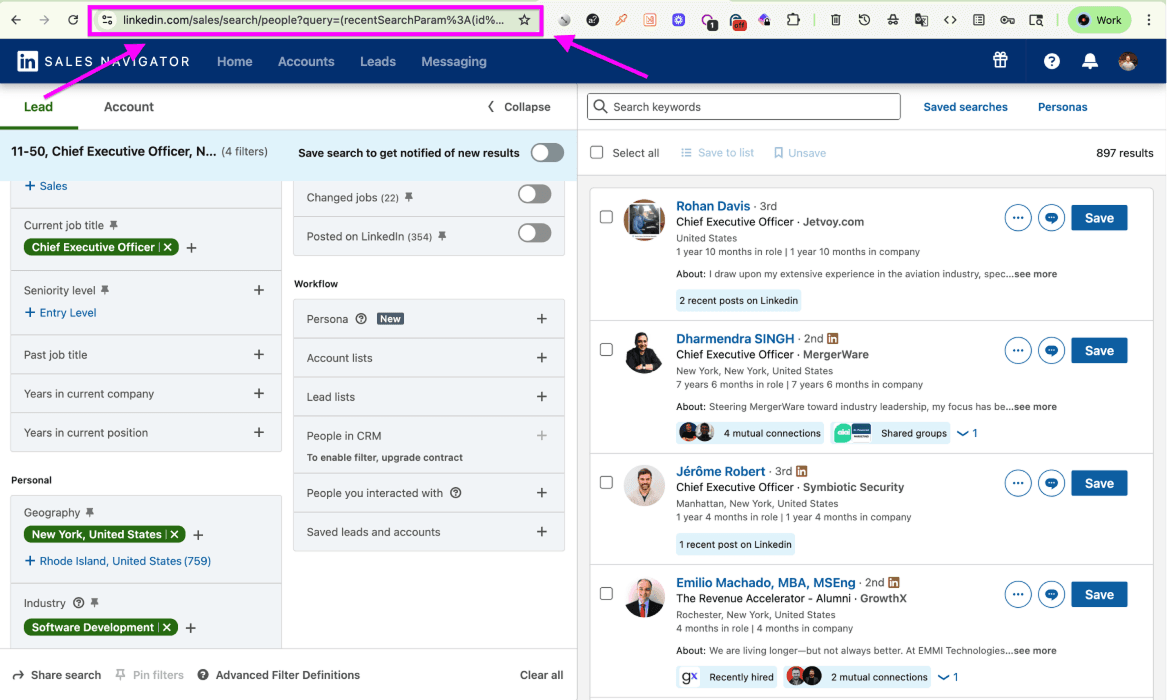
Once the search has the right shape, copy the URL from the browser address bar.
That URL is the handoff. It contains the live Sales Navigator search Datablist needs to scrape. Do not copy a saved-search URL, and do not rely on Sales Navigator saved searches as the input.
📘 Regular LinkedIn Search URLs Also Work
The same Sales Navigator Scraper can also scrape regular LinkedIn search URLs for the lead workflow. If you do not have Sales Navigator, run the closest possible LinkedIn search and copy that URL instead.
Phase 2: Scrape The Lead Search With Datablist
Now the workflow moves to Datablist. The URL is the input, Datablist runs the scrape, and your LinkedIn account stays out of the process.
If you prefer to watch instead of reading, I also made a video on Sales Navigator scraping:
📌 Before You Run The Scrape
- Input: Sales Navigator lead search URL, or regular LinkedIn search URL
- Key outputs: Name, work email, LinkedIn URL, Sales Navigator URL, headline, location, current job title, recent work history, recent education history, skills, company name, company domain, company size, industry.
- Full output list: Datablist returns 50+ fields, including up to three professional experience entries and three education entries. The full field list is in the FAQ at the bottom of this article.
- Cost: 20 credits per imported lead in the default mode, or 10 credits per lead in account mode
- Settings: Scrape mode, LinkedIn Search URL, Limit, Offset; account mode also requires a
li_atcookie
Step 1: Sign Up And Create A Collection
Sign up on Datablist.com. The free plan works for getting started and does not require a credit card.
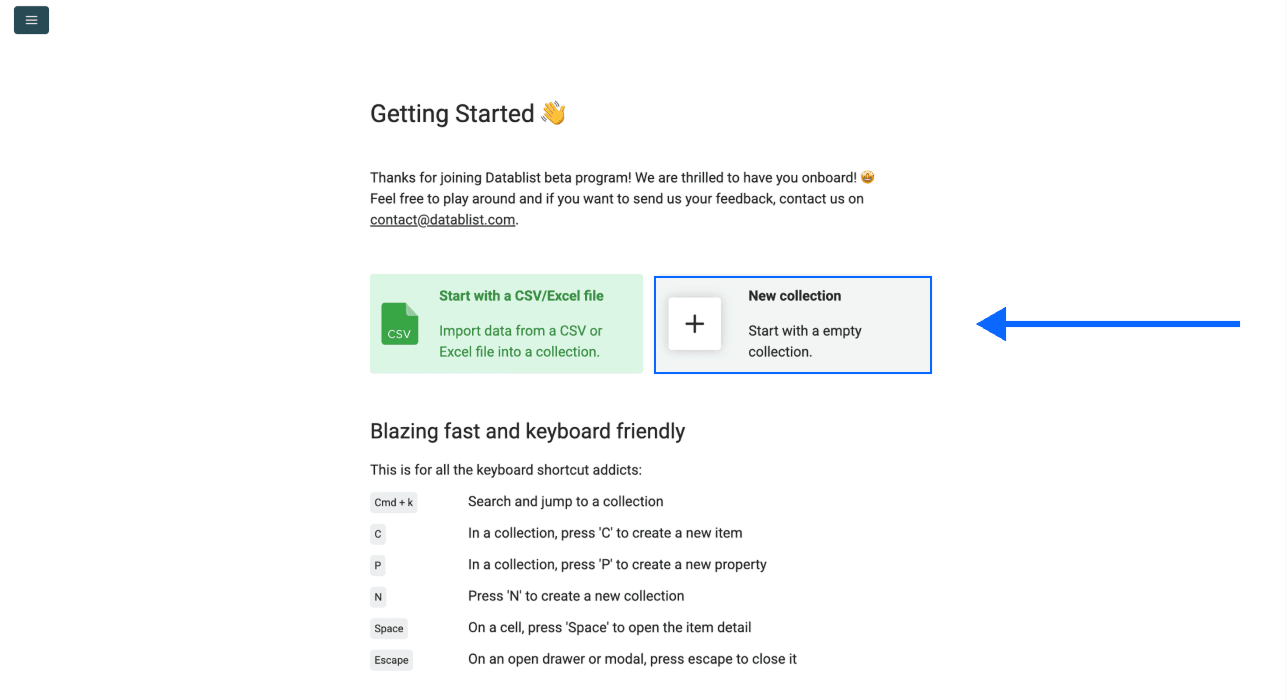
Inside the workspace, click New Collection. This collection is where the scraped leads will land, one row per profile.
Step 2: Open The Sales Navigator Scraper
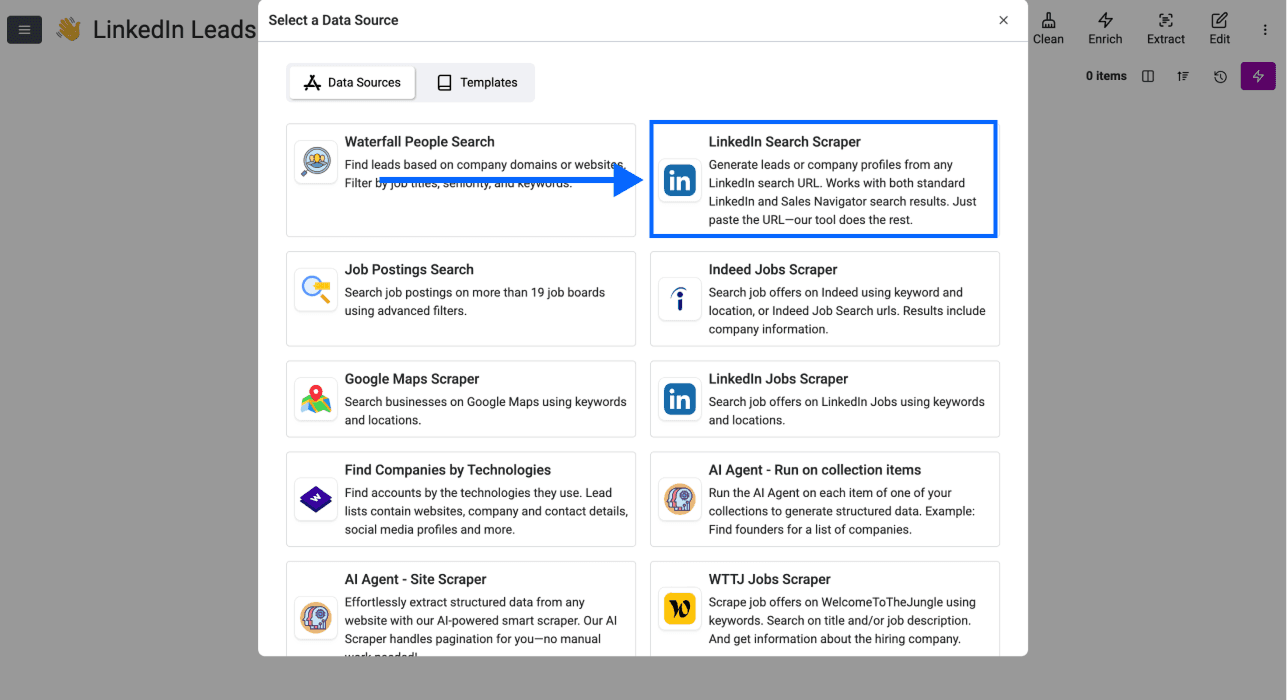
Inside the collection, click See all sources and select the Sales Navigator Scraper from the source library.
Step 3: Configure The Scrape Settings
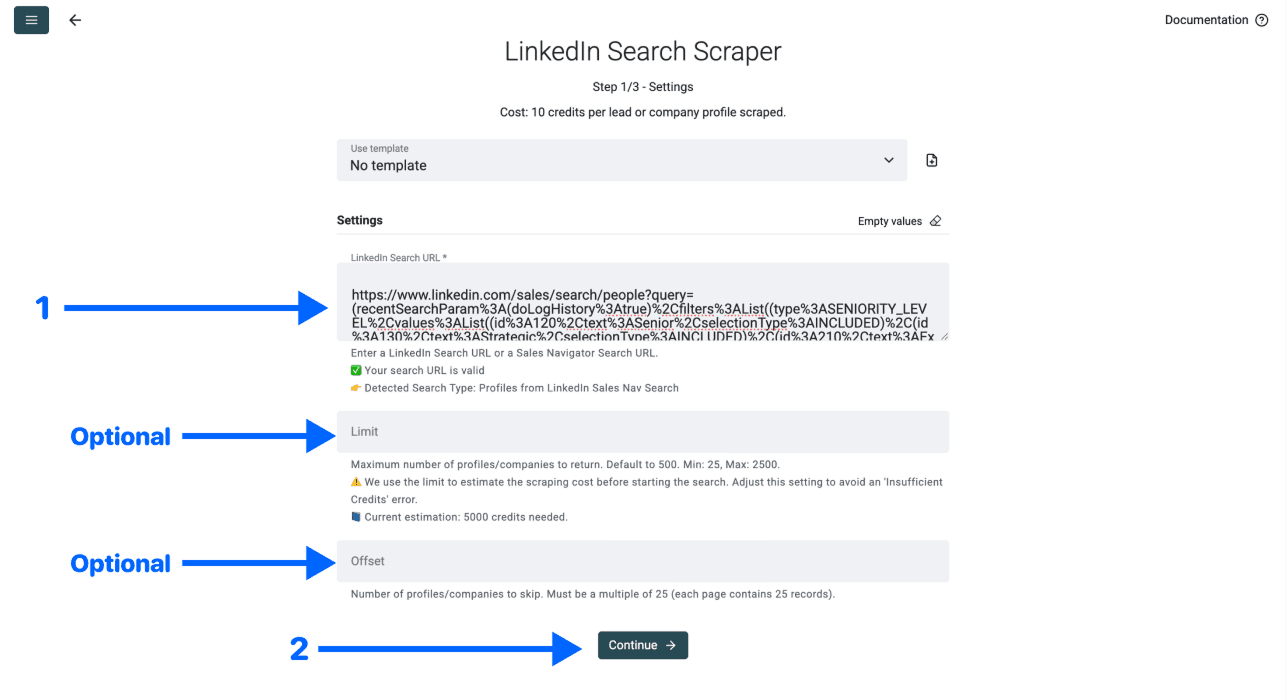
Choose the scrape mode, then paste the Sales Navigator search URL from Phase 1 into the configuration panel. The default mode needs no LinkedIn cookie. The optional account mode requires your li_at cookie and can use account-specific lead searches.
Then set the three scrape settings:
- Search URL: the live Sales Navigator lead search URL
- Limit: how many leads to import
- Offset: how many results to skip before the import starts
Step 4: Select The Output Fields
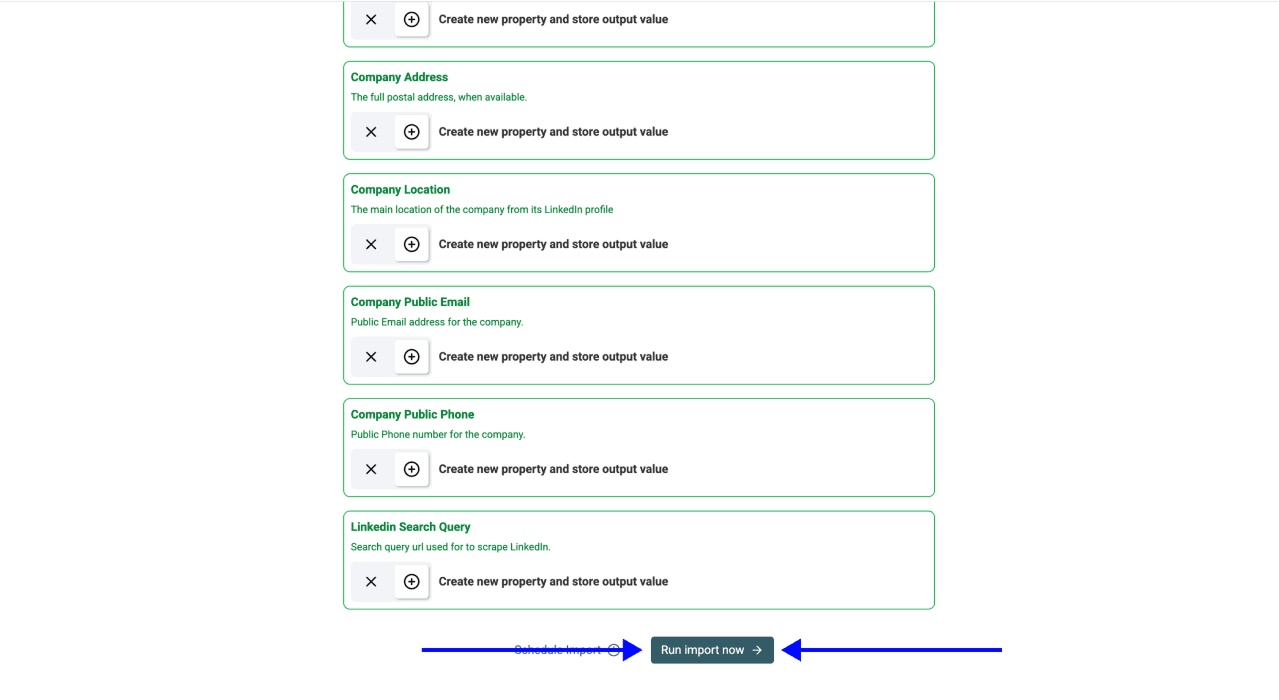
Datablist shows all available output fields and creates a column for each one automatically. Click the ✕ icons to remove fields you do not want in the collection, then scroll down.
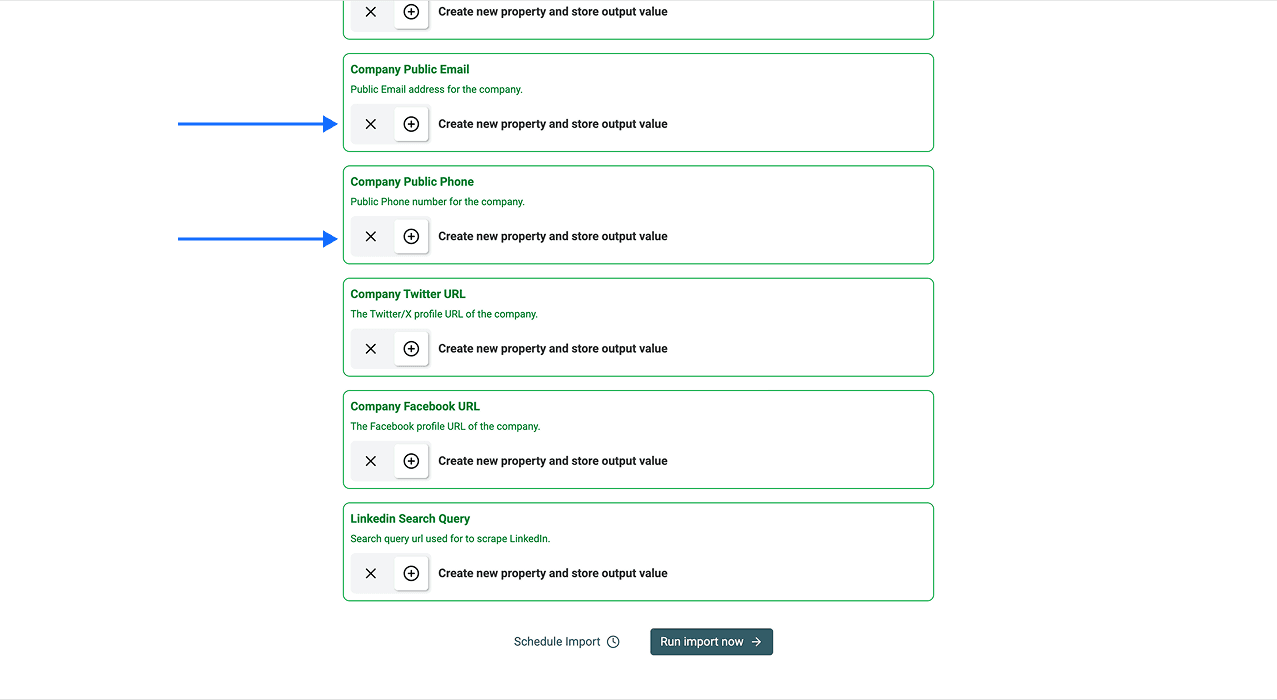
The output set splits into three buckets:
- Personal: first name, last name, full name, LinkedIn URL, Sales Navigator URL, internal ID, location, and education history.
- Professional: job title, headline, summary, current role, recent work history, open-to-work flag, and premium account flag.
- Company: company name, domain, description, industry, specialties, employee range, address, public email, public phone, and company social URLs.
Step 5: Run The Import And Review Results
Click Run Import Now. Datablist starts the scrape and writes the results into the collection.
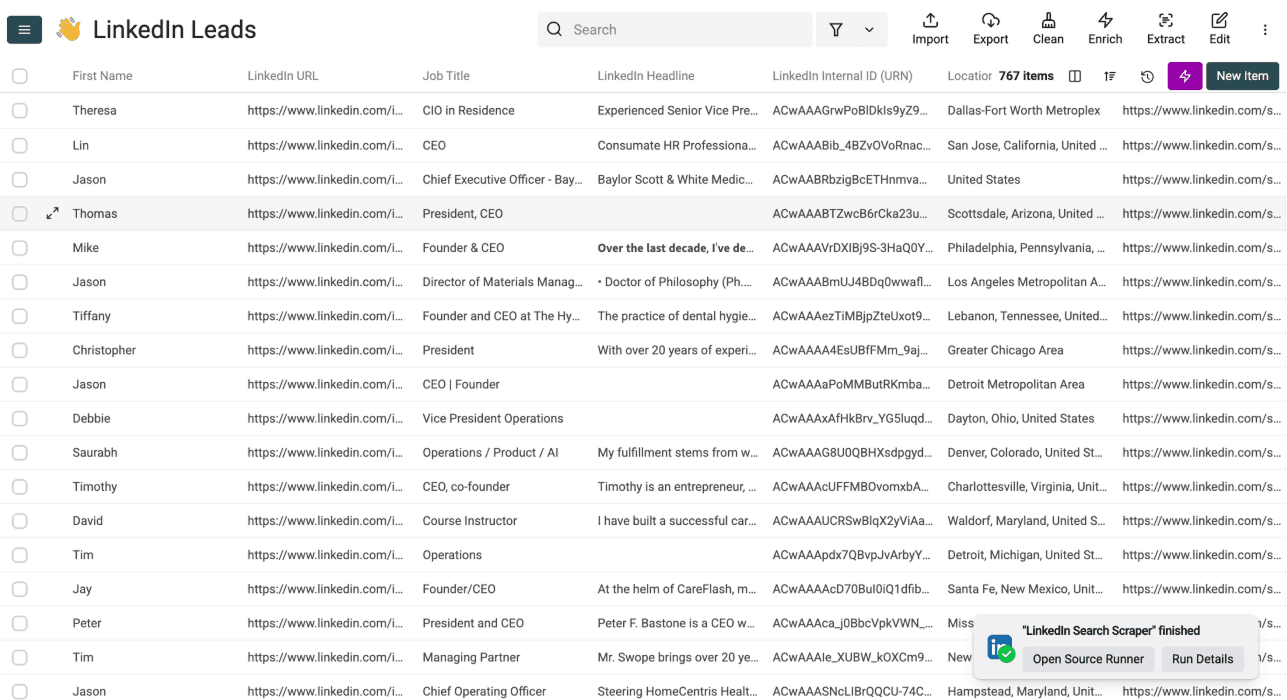
When the scrape finishes, review the collection. Each row is one lead. Emails appear where Datablist finds them, and the remaining fields are already structured for filtering, outreach, CRM import, or further enrichment.
How To Scrape Accounts And Companies From Sales Navigator (Step-by-Step)
Scraping Sales Navigator accounts follows the same two-phase workflow as the lead scrape, but the input and output are different:
- Phase 1: Configure the Sales Navigator account search and copy the live account search URL.
- Phase 2: Paste the URL into Datablist, choose the company fields, and run the scrape.
Use this workflow when the final list should contain companies, not people. It is the right fit for ABM lists, ICP research, territory planning, and company enrichment.
Phase 1: Configure The Sales Navigator Account Search
This part happens inside Sales Navigator. No extension, no cookie, no scrape yet. You are only building the account search that Datablist will later read.
Step 1: Open Sales Navigator And Switch To Accounts
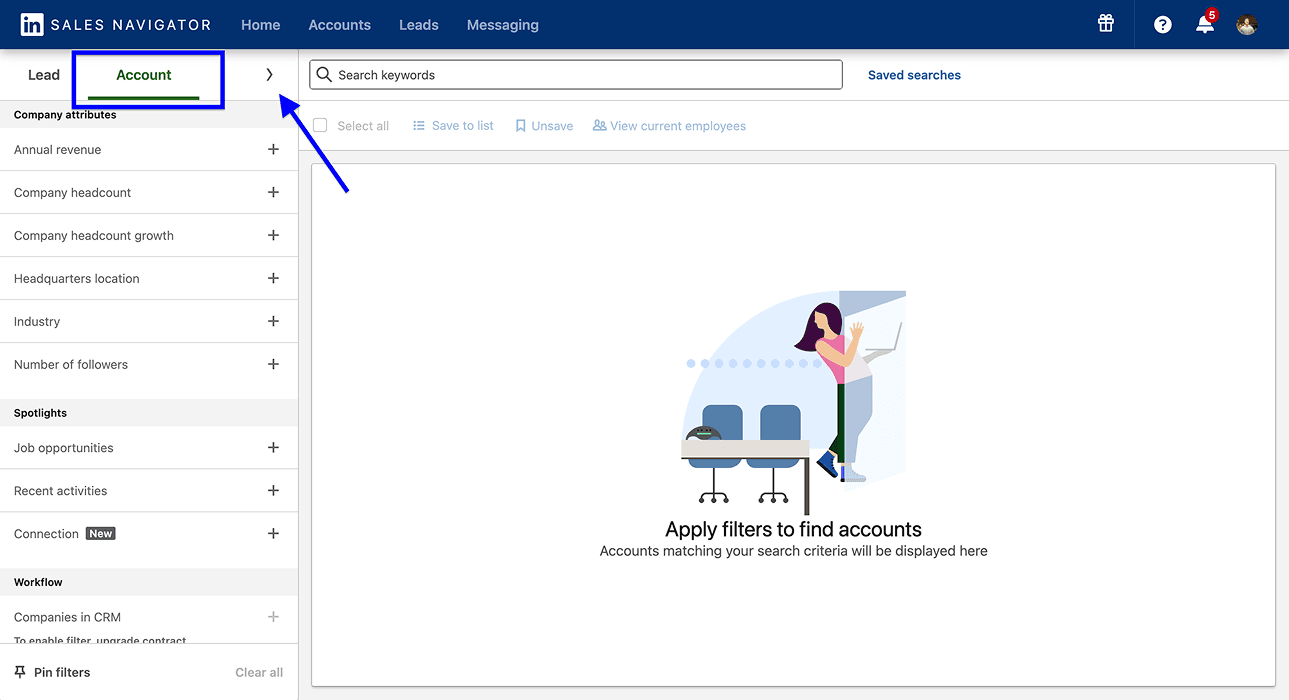
Open Sales Navigator and switch from Leads to Accounts, then expand the firmographic filter panel.
This distinction matters because account searches return companies, not individual profiles. If you want a company list for ABM or ICP research, start here before thinking about decision-makers.
Step 2: Use Account Filters To Narrow Down Companies
Build the account search around the company profile you want to target.
A useful account search usually combines:
- Industry: the market or category the company operates in
- Headcount: the size range that matches your ICP
- Geography: headquarters, region, or operating market
- Growth signals: headcount growth, department growth, funding, or technologies used
Broad account searches produce messy exports. A tighter search gives Datablist a cleaner account list to import.
Step 3: Keep The Account Search Under 2,500 Results
The 2,500-result ceiling also applies to account searches. If the search is too broad, split it before scraping.
Use company size, regions, industry sub-categories, or growth ranges to turn one oversized account search into several clean imports. Keep the detailed ceiling logic for the dedicated 2,500-result section below.
Step 4: Copy The Account Search URL
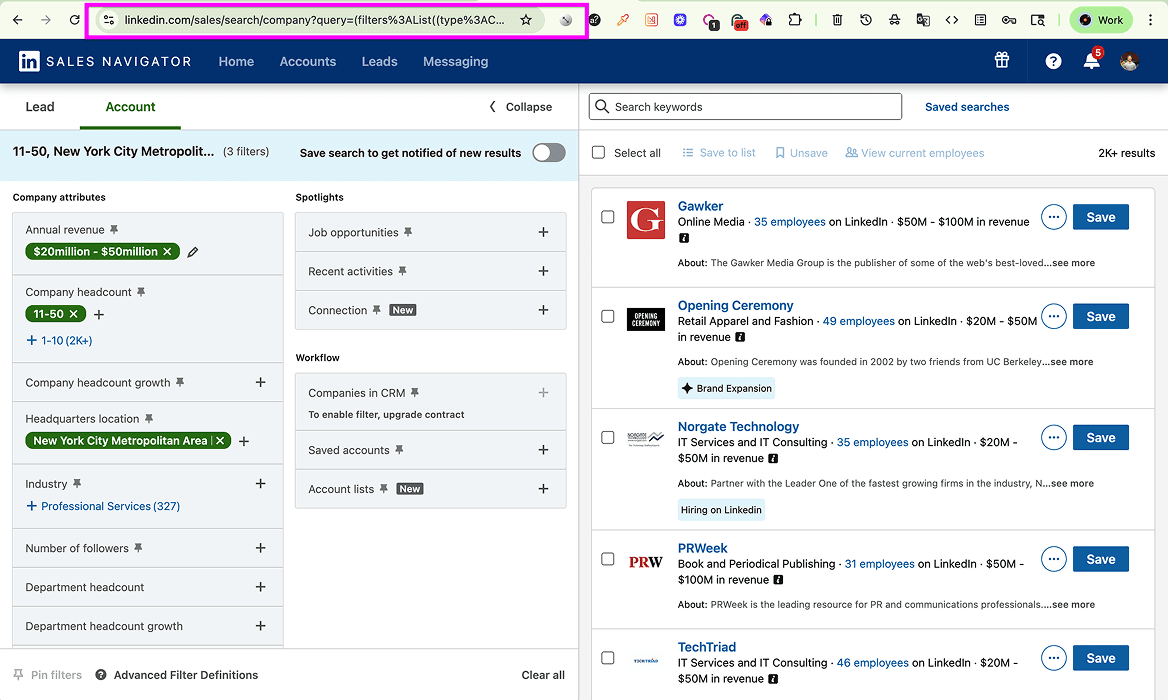
When the account search has the right shape, copy the live URL from the browser address bar.
That URL is the handoff to Datablist. Do not use a saved-search URL, and do not use a saved-list URL if the goal is to scrape a filtered Sales Navigator account search.
Phase 2: Scrape The Account Search With Datablist
Now the workflow moves to Datablist. Select Scrape without providing LinkedIn account for company searches, then paste the account search URL.
📌 Before You Run The Account Scrape
- Input: Sales Navigator account search URL
- Key outputs: company name, domain, description, founded year, LinkedIn URL, LinkedIn ID, industry, specialties, employee range, number of employees, location, address, public email, and public phone.
- Cost: 20 credits per imported account in the default mode
- Settings: Search URL, Limit, Offset
Step 1: Sign Up And Create A Collection
Sign up on Datablist.com. The free plan works for getting started and does not require a credit card.
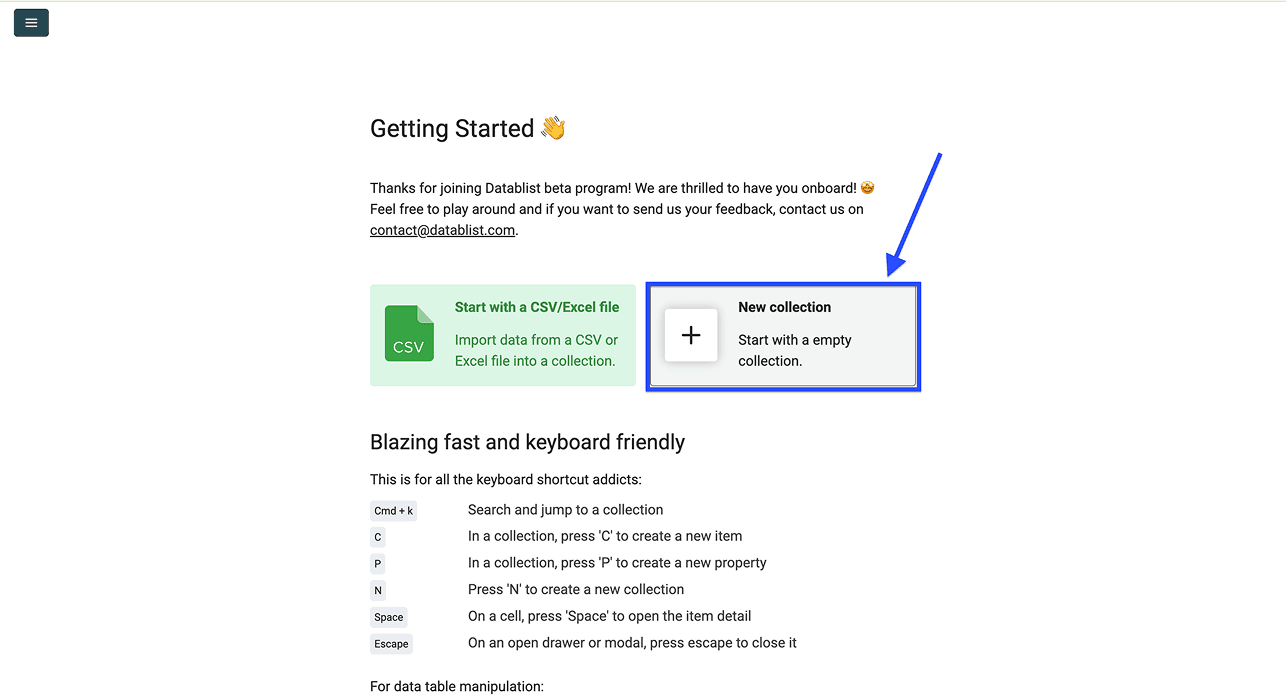
Inside the workspace, click New Collection. Separate collections are usually cleaner: one for leads, one for accounts.
Step 2: Open The Sales Navigator Scraper
Inside the collection, click See all sources and select the Sales Navigator Scraper from the source library. The interface may still show this as LinkedIn Search Scraper, which is the same source label used in the older account workflow.
Step 3: Configure The Scrape Settings
Paste the Sales Navigator account search URL from Phase 1 into the configuration panel.
Then set the three scrape settings:
- Search URL: the live Sales Navigator account search URL
- Limit: how many accounts to import
- Offset: how many accounts to skip before the import starts
Step 4: Select Company-Level Output Fields
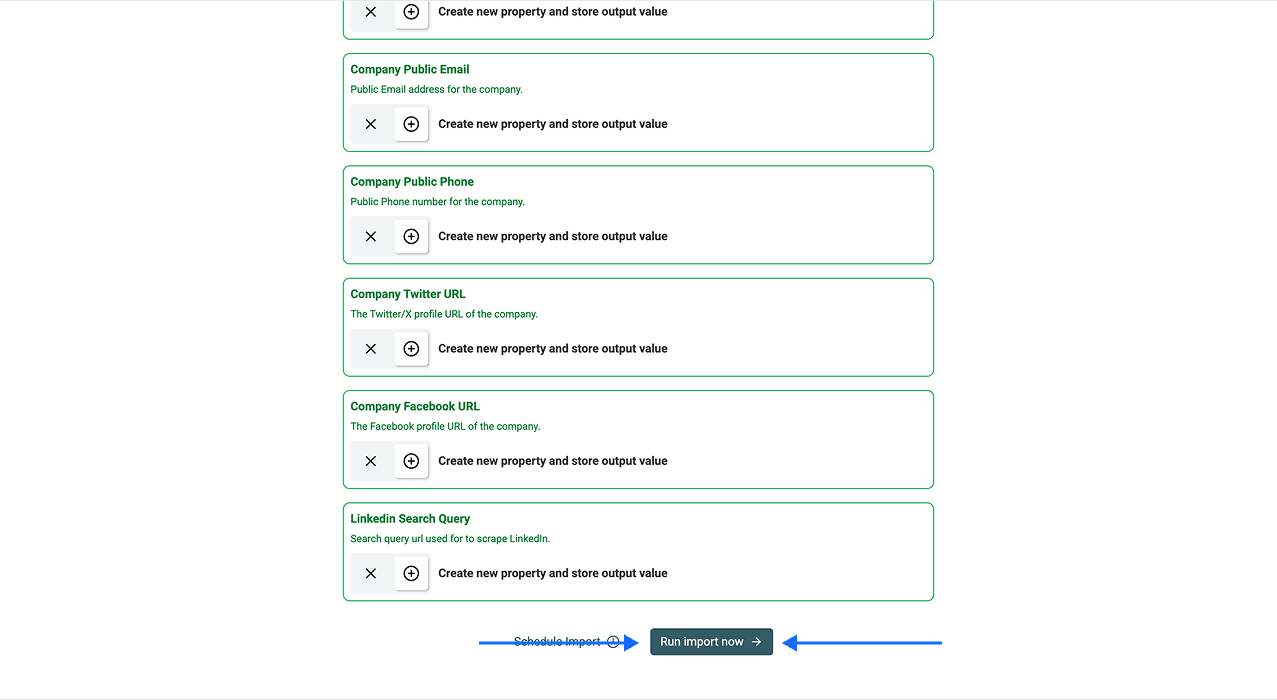
Datablist creates output properties for the available company fields automatically. Keep the fields you need and remove anything unnecessary before running the import.
The account output is easier to understand in three groups:
- Company identity: company name, domain, description, founded year, location, address, LinkedIn URL, LinkedIn ID
- Firmographics: industry, specialties, employee range, number of employees
- Public contact fields: public email, public phone
Step 5: Run The Import And Review Results
Scroll to the bottom of the output configuration and click Run Import Now. Datablist starts the scrape and writes the results into the collection.
When the scrape finishes, review the collection. Each row is one company, with company-level fields ready for filtering, CRM import, ABM planning, territory planning, or enrichment inside Datablist.
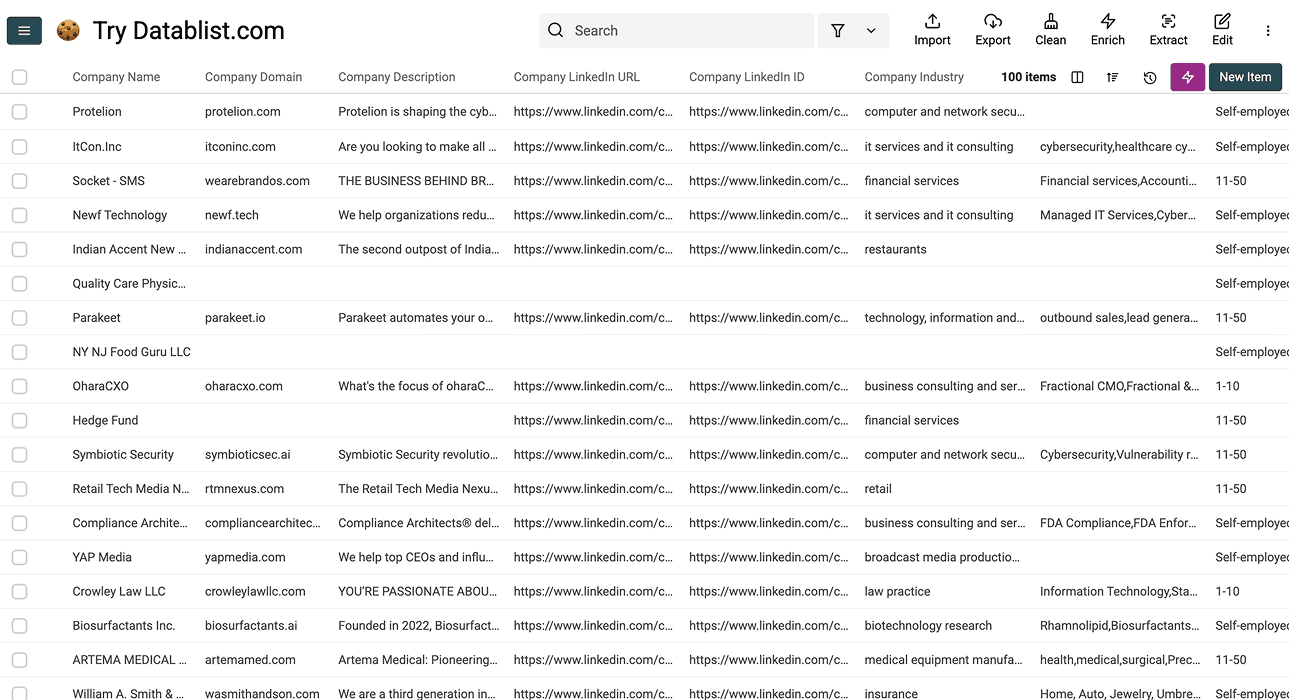
From there, enrich your account list with Datablist or export the account list as a CSV for your CRM or account-based workflow.
What To Do After Scraping Sales Navigator Data Inside Datablist
A Sales Navigator scrape gives you the raw list. What you do next depends on whether you scraped leads or accounts.
Lead lists need contact data and personalization. Account lists need company intelligence and qualification signals. Both can happen inside the same Datablist collection, before you export the final list.
If You Scraped A Lead List
A scraped lead list becomes useful once it is contactable, segmented, and ready for outreach. This is what you can do in Datablist:
- Find missing professional emails. Start with work emails because they are the cleanest fit for B2B outreach. If some rows are missing emails, run an enrichment on the same collection to find emails from LinkedIn profiles.
- Enrich personal emails and phone numbers. Some motions need a personal email or a phone number rather than a work email, especially for founders, local companies, or recruiting workflows.
- Use AI to personalize or segment the lead list. The scrape gives you titles, companies, summaries, work history, and LinkedIn context. Use AI to turn that context into first lines, outreach angles, qualification notes, or message segments.
If You Scraped An Account List
Sales Navigator scraping gives you the foundation of a good account list, and Datablist helps you turn that company list into something useful with the following enrichments:
- Company name to website: When you scrape Sales Navigator, you get the company identity, but not every company has its domain on their LinkedIn page, so the domain enrichment helps you unblock all the steps that depend on it, e.g, matching CRM records, enriching company data, or running website-based research
- AI Research Agent: Sales Navigator will not show every data point you care about. Use AI research to answer questions like whether the company sells to SMBs, has an enterprise motion, or looks like a fit for your offer.
- Website Scraper: Company websites show context LinkedIn does not: pricing pages, case studies, product pages, integrations, customer logos, and positioning. Those signals can make a difference in an outbound campaign.
- Job Postings Scraper: Hiring signals show what a company is investing in right now, which is the exact data you need if you are a recruiter.
- Technology Enrichment: Technology data shows whether the account uses tools that matter for segmentation or outreach.
💡 The Point: One Workspace, Scrape Plus Enrich, No CSV Ping-Pong
Most teams treat scraping and enrichment as two separate jobs. The better workflow is to scrape the list, enrich the missing fields, research the right signals, and only then export the final version.
Choose The Scrape Mode For Your Search
The default mode avoids sharing your LinkedIn cookie with Datablist and supports lead and account searches. The optional account mode uses your li_at cookie, costs fewer credits per lead, and does not support company searches. Neither mode guarantees that a LinkedIn account will remain unrestricted. Review LinkedIn's user agreement and your own permissions before collecting data.
Once you get your scraping method right, the rest becomes easy: Lead lists come out structured and ready for enrichment or CRM import. Account lists go straight into ICP filtering or ABM planning.
Frequently Asked Questions About Sales Navigator Scraping
How Much Does It Cost To Scrape Sales Navigator With Datablist?
The default mode costs 20 credits per imported lead or account. The optional mode using your LinkedIn account costs 10 credits per imported lead and does not support account searches. Check the estimated credit use in the import settings before starting.
How Long Does It Take To Scrape 1,000 Sales Navigator Leads?
Import time depends on the search, provider response, and number of results. Datablist shows task progress after you start the import.
Do I Need Sales Navigator Premium To Use Datablist’s Sales Navigator Scraper?
No. Datablist can also use regular LinkedIn search URLs for the lead workflow, so Sales Navigator Premium is not required for lead scraping. Output coverage is narrower than a full Sales Navigator search because LinkedIn gives you fewer filters and fields, but the scraping mechanism and per-row cost are identical.
Can I Scrape Sales Navigator Leads And Accounts With Datablist?
Yes. Datablist’s Sales Navigator Scraper handles both lead search URLs and account search URLs. Run them as separate imports because lead searches return people, while account searches return companies.
Can I Enrich Scraped Sales Navigator Data With Emails And Phone Numbers Inside Datablist?
Yes. The Waterfall Email Finder runs against the same collection and queries 20+ providers in cascade order. Company enrichments handle the company-side gaps, such as missing domains, employee counts, and public contact fields. Both run without exporting the data out of Datablist first.
What Fields Does Datablist Return When Scraping Sales Navigator Leads?
Datablist returns 50+ fields per lead. The output includes profile and contact data, LinkedIn profile signals, professional experience, education history, company data, and scrape metadata.
Profile and contact fields: First Name, Last Name, Full Name, Work Email Address, Other Emails, LinkedIn URL, SalesNavigator URL, LinkedIn Internal ID (URN), Location.
LinkedIn profile signals: Open To Work, Premium Account, Open Profile, LinkedIn Headline, LinkedIn Summary, Connections, Skills.
Professional experience fields: Datablist returns the current or most recent role, plus up to two previous roles where available: Job Title (Current or last experience), Description (Current or last experience), Last Position Start Date, Last Position End Date, Title (Experience #2), Company Name (Experience #2), Description (Experience #2), Position 2 Start Date, Position 2 End Date, Title (Experience #3), Company Name (Experience #3), Description (Experience #3), Position 3 Start Date, Position 3 End Date.
Education fields: Datablist returns the current or most recent education entry, plus up to two previous education entries where available: School (Current or last education), Start Date (Current or last education), End Date (Current or last education), School (Education #2), Start Date (Education #2), End Date (Education #2), School (Education #3), Start Date (Education #3), End Date (Education #3).
Company fields: Company Name, Company Domain, Company Description, Company Founded Year, Company LinkedIn URL, Company LinkedIn ID, Company Industry, Company Specialties, Employee Range, Number of Employees, Company Annual Revenue, Company Address, Company Location, Company Public Email, Company Public Phone, Company Twitter URL, Company Facebook URL.
Scrape metadata: LinkedIn Search Query.
Will Scraping Sales Navigator Get My LinkedIn Account Banned?
Datablist's default mode does not require your LinkedIn cookie. The optional account mode does use it. Account restrictions and data-use rules depend on LinkedIn's policies and your activity, so neither mode should be described as risk-free.
What Is The Difference Between Scraping Sales Navigator Leads And Scraping Accounts From Sales Navigator?
Lead scraping returns individual profiles with people-level fields: name, title, profile URL, headline, work history, education history, and contact data where available. Account scraping returns companies with firmographic fields: domain, industry, employee range, location, company description, and public contact fields.