
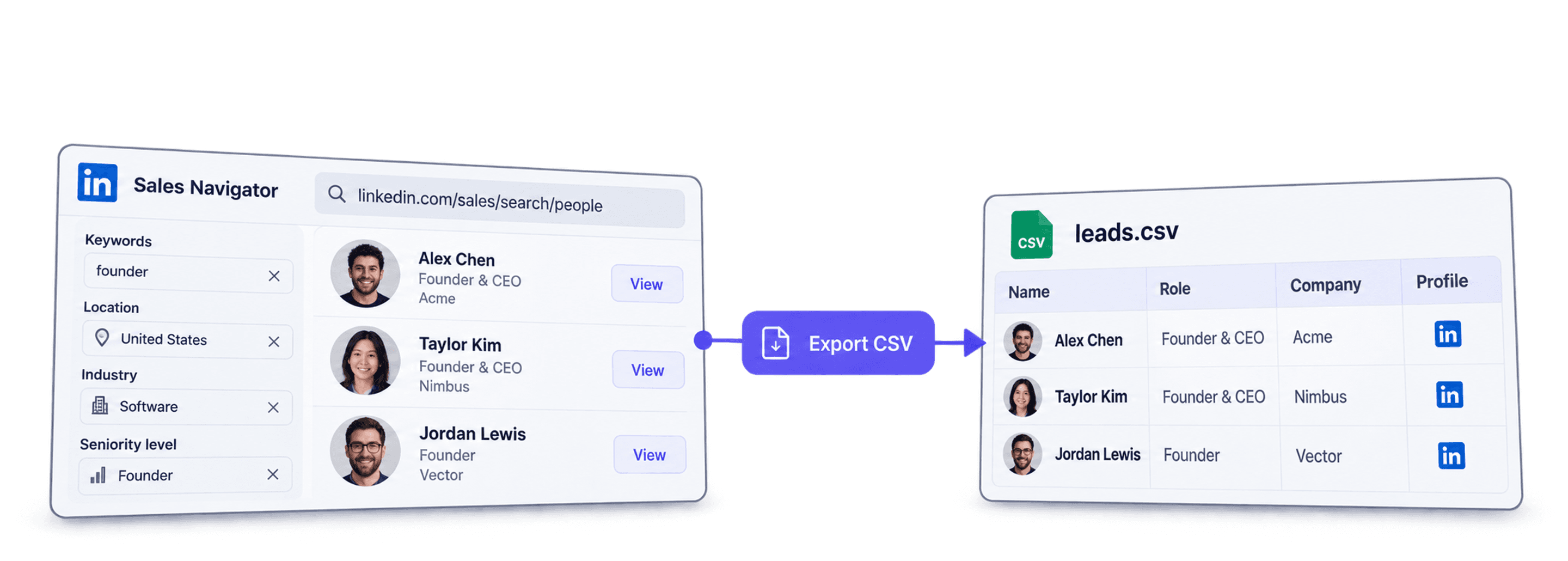
To export Sales Navigator leads to CSV or Excel with Datablist, copy a lead-search URL, run the LinkedIn Search Scraper, review the imported profiles, then download the collection with Export. Importing results into Datablist and downloading the file are two separate steps.
If email discovery is your next step, first check that the exported person URL uses the public /in/ format. The LinkedIn URL email workflow explains the input check and returned statuses.
Start with a small segment so you can check the fields and credit use before importing the full search. The default mode does not require your LinkedIn cookie; an optional mode uses your account. Neither is an account-safety guarantee.
📌 Summary For Those In a Rush
Turn a filtered LinkedIn lead search into a spreadsheet you can inspect before a CRM import. Datablist creates the rows, lets you clean and enrich them, and exports CSV or Excel.
- Input: a supported Sales Navigator or regular LinkedIn search URL.
- Output: reviewed profile and company columns, with a stable profile identifier for deduplication. Email availability varies; check it separately.
What this guide covers
Build the search, choose the scraping mode, map the outputs, review duplicates and missing values, then download CSV or Excel.
Understand the export options
Start by distinguishing a lead-search export from saving a list or syncing records through a CRM integration.
Search results versus CRM integrations
Saving a lead list does not give you a CSV of the search results. CRM integration availability depends on your Sales Navigator plan and connected CRM. Check the options in your account before choosing a separate export workflow.
Choose an export workflow
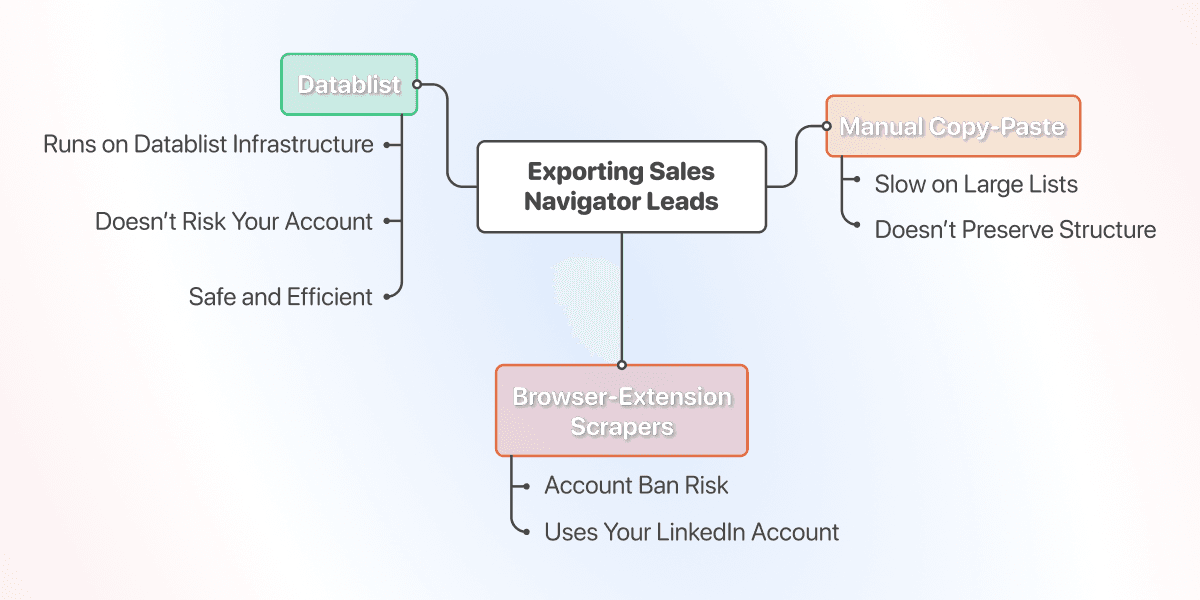
For a few records, manual entry may be sufficient. For a larger lead list, compare a supported CRM integration, an export tool and the subsequent data-cleaning work. If you buy a contractor’s file, ask for its source, collection date and a sample before importing it. For an export-tool decision, the Datablist versus Evaboot guide compares account access, credit units and what happens after the rows arrive.
Understand account access and platform rules
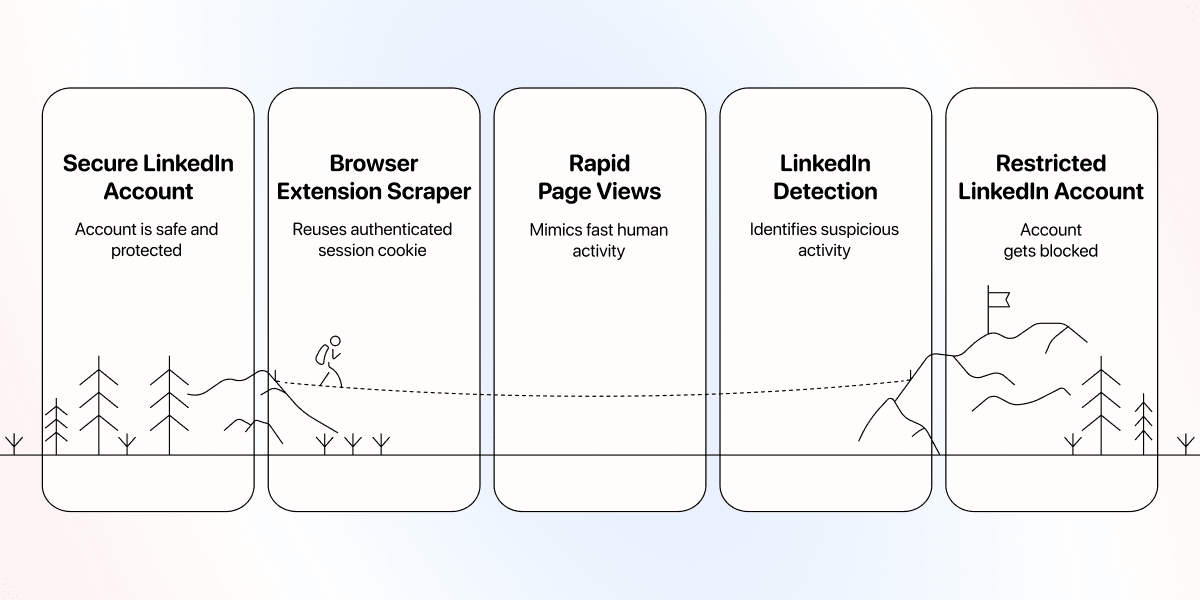
LinkedIn’s automated-activity guidance prohibits third-party tools that scrape or automate its website. An extension or service using your authenticated session acts with account access. A workflow without your cookie changes that exposure, but does not establish platform approval or eliminate risk.
If your account already shows a restriction, follow the official recovery workflow. Changing tools does not reverse a restriction.
Export Sales Navigator leads with Datablist
The LinkedIn Search Scraper creates collection rows from a search URL. You can then inspect, deduplicate, enrich and export those rows in the same workspace.
Choose the scraping mode deliberately
In Scraping Mode, the default option runs without providing your LinkedIn account and costs 20 credits per imported profile. The optional account mode requires a LinkedIn cookie and costs 10 credits per imported profile. Keep the default if you do not want to provide that credential. Check the displayed mode and estimate before starting; screenshots may show an earlier configuration.
Budget for the import and later enrichment
At the current default rate, 100 imported profiles cost 2,000 credits; 1,000 cost 20,000 credits before any separate enrichment. With your account mode, the corresponding profile costs are 1,000 and 10,000 credits. These are arithmetic examples, not promised result counts.
The source uses your requested Limit to estimate the balance needed before starting. Processing time depends on the source and run progress; there is no fixed completion time. Compare current plans and credit allowances, then start with a sample.
Phase 1: Configure a focused lead search
For example, define sales leaders at software companies in one region. Keep the search criteria alongside the exported file so you can explain which audience the rows represent.
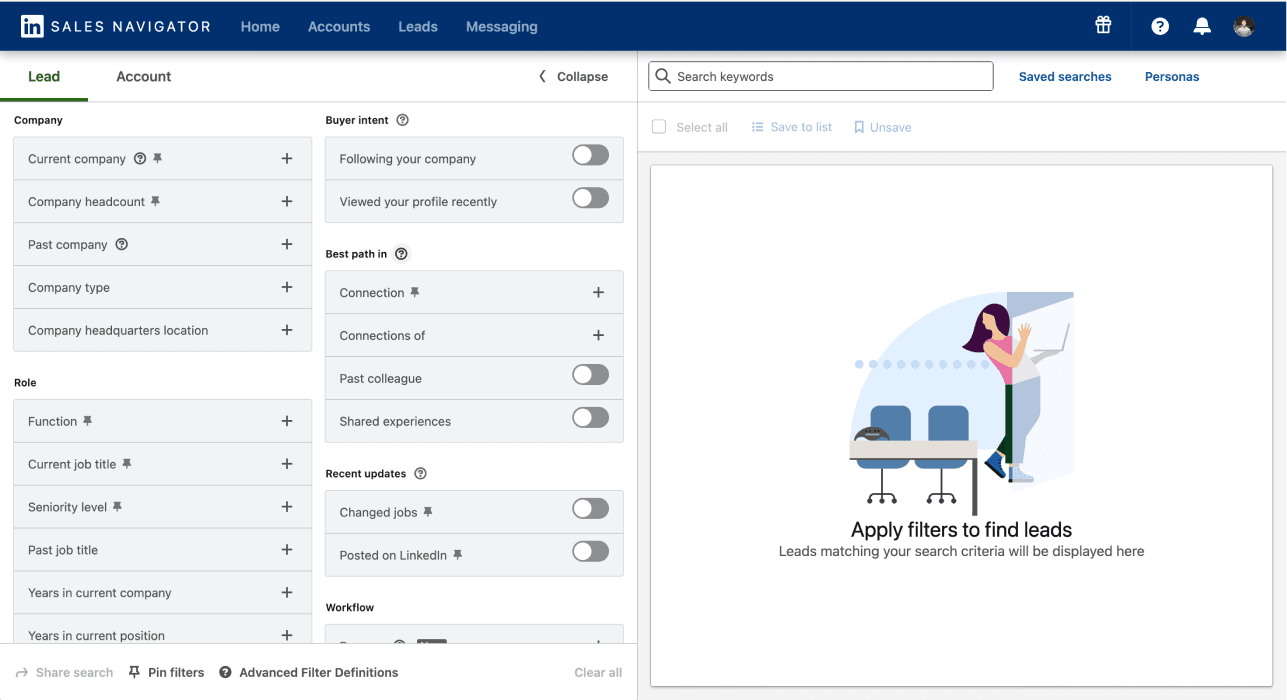
Step 1: Open Sales Navigator Lead Search
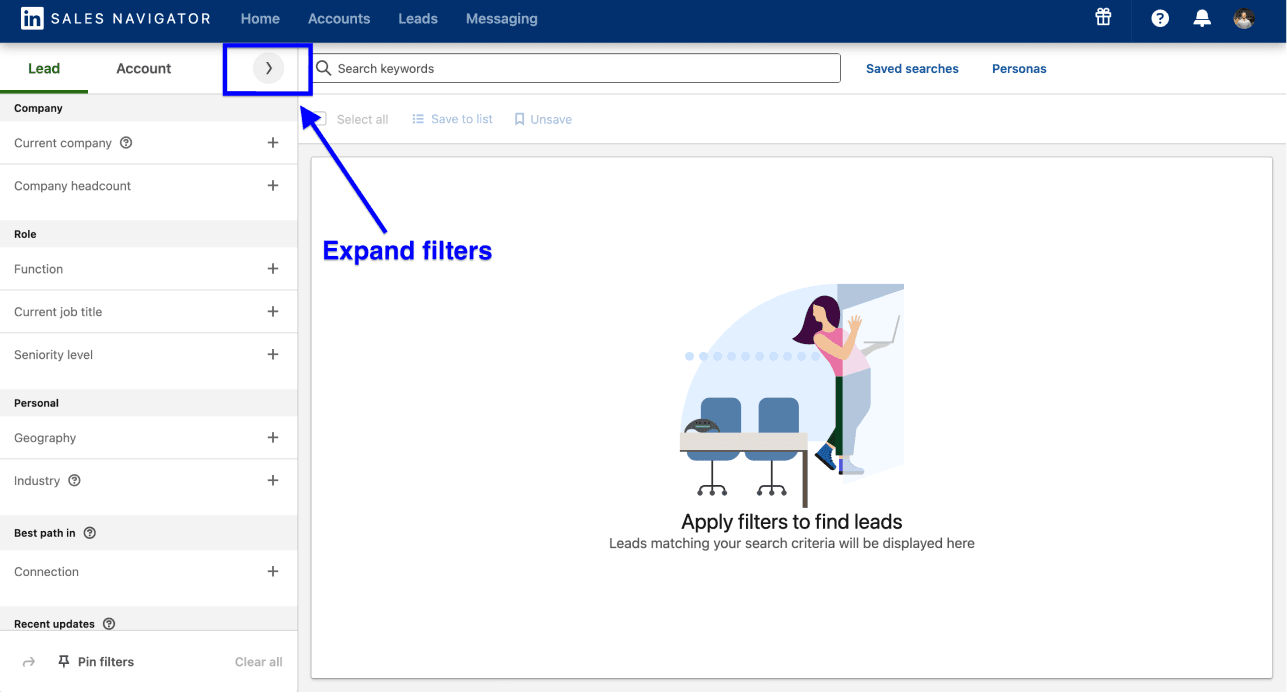
Open the lead search and expand its filter panel. Use the filters available in your account; their number and layout can change.
Step 2: Narrow the audience
Combine job title, geography and company size, then inspect several visible profiles. A title alone may include consultants, former employees or people outside your intended market.
Step 3: Segment broad searches
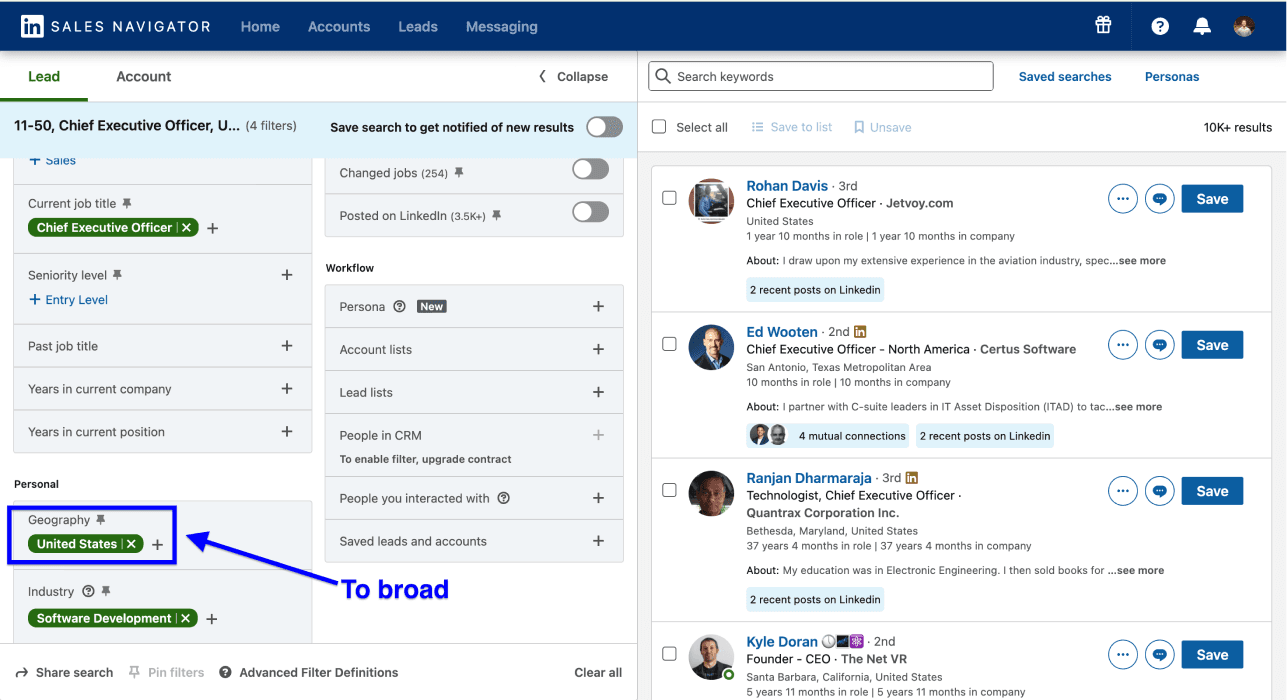
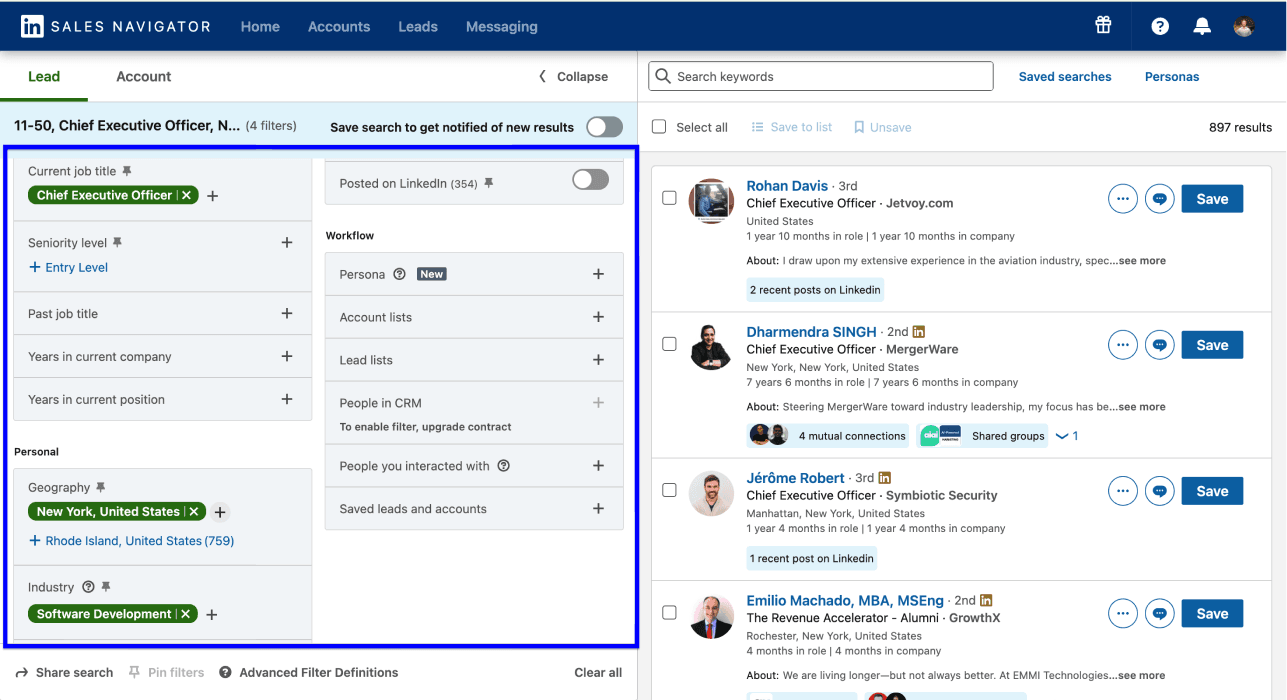
Datablist’s current source accepts a Limit from 25 to 2,500, with a default of 500. This is the source’s request range, not a promise that LinkedIn will return every matching lead.
Split broad searches into meaningful segments, such as geography or industry. Preserve each segment’s URL. If you use Offset, it is available for Sales Navigator searches in the default mode and must be a multiple of 25. Search ordering can change, so an offset does not guarantee disjoint batches. Deduplicate the combined results by profile URL or ID.
Step 4: Copy the search URL
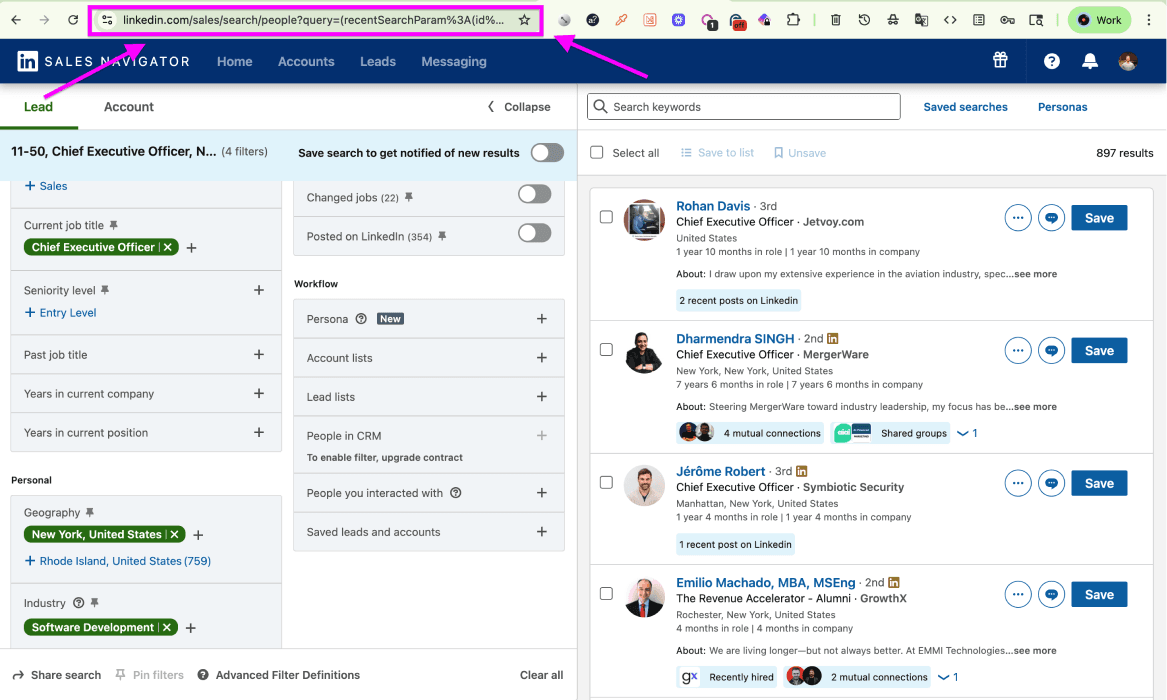
Copy the browser’s search URL after applying the filters. Use a search URL rather than an individual lead URL. The source also accepts supported regular LinkedIn search URLs, with mode-specific validation. Read the validation message before continuing.
The Sales Navigator scraping walkthrough provides another configuration example.
Phase 2: Import the search results
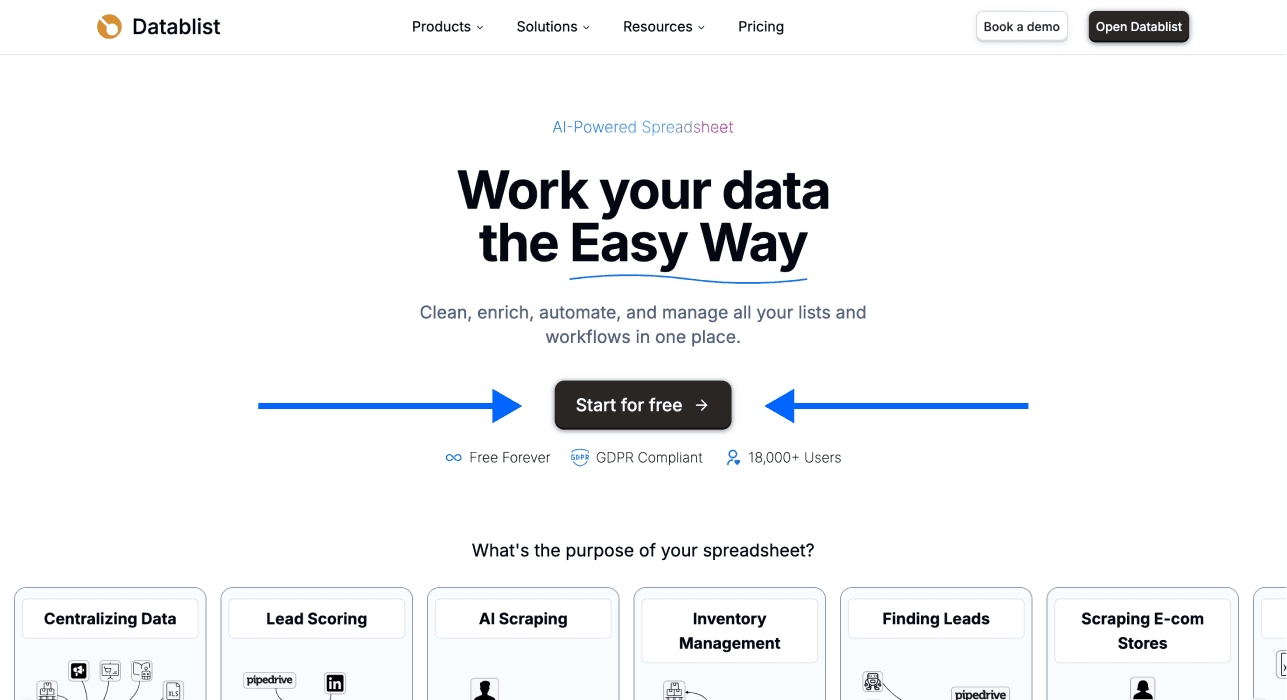
Use a new collection for the sample. This makes it easier to inspect the output before adding records to an existing prospect list.
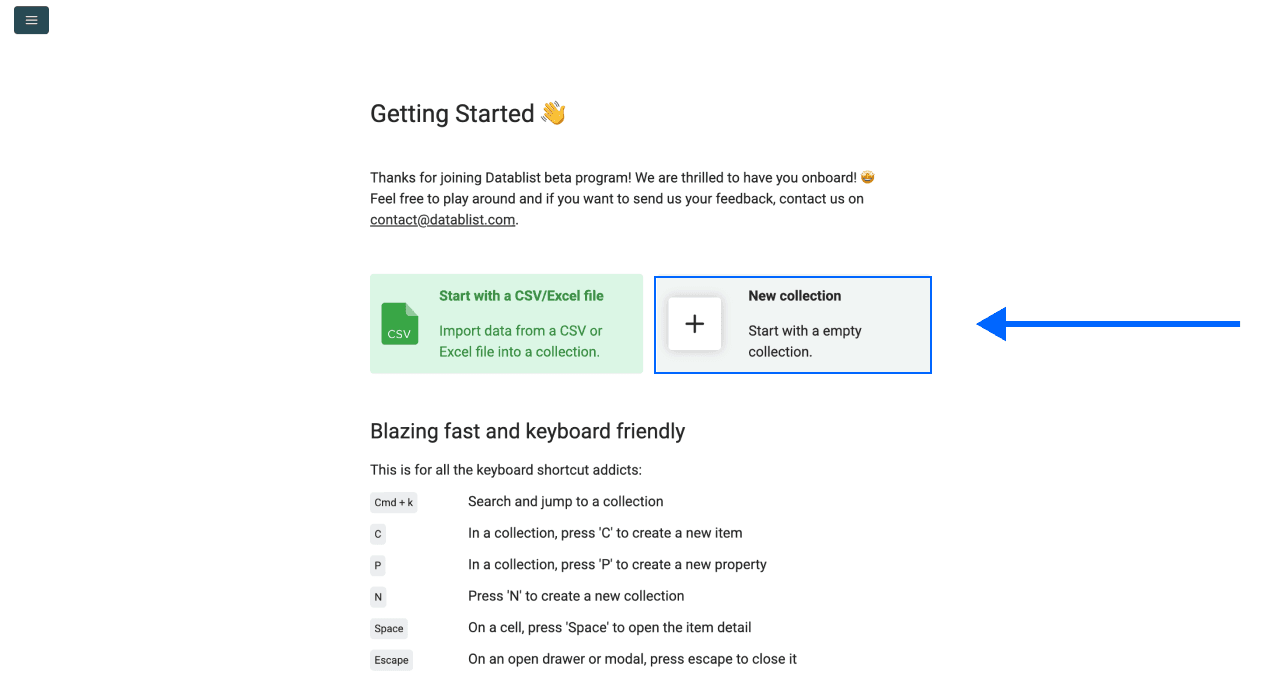
Step 1: Create a collection
Open Datablist, then click New Collection. Give it a name that identifies the audience and segment.
Step 2: Select the source
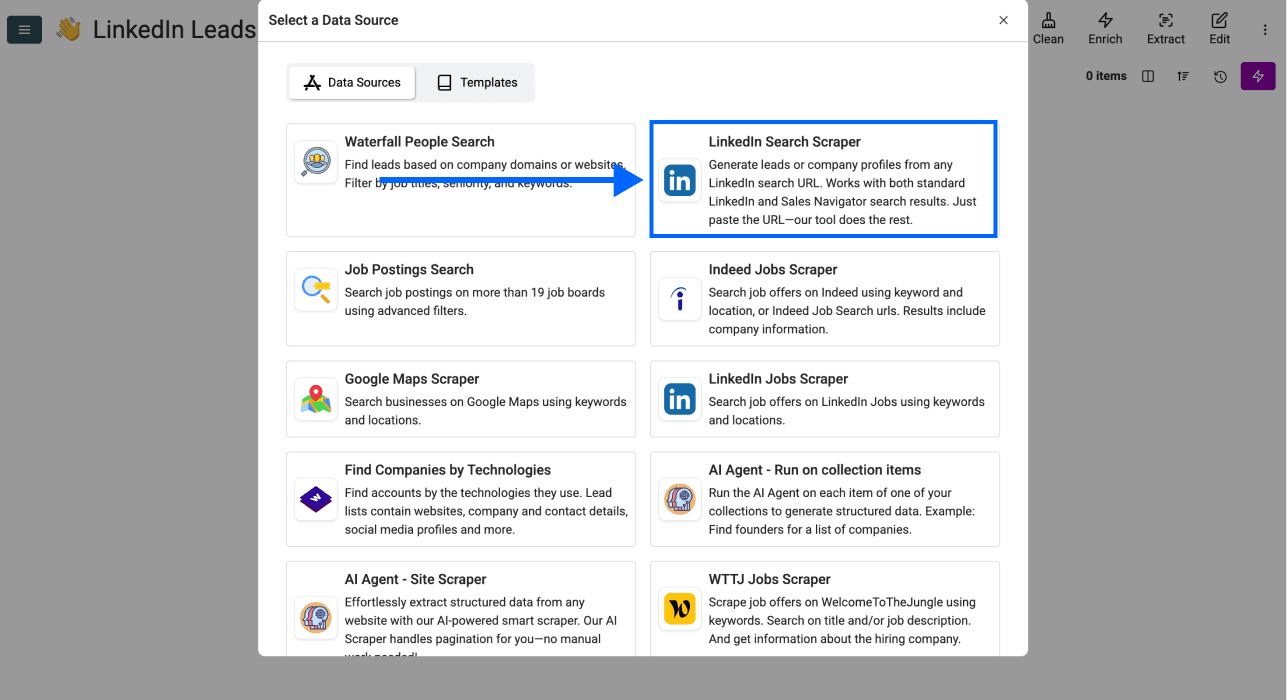
Click See all sources and select LinkedIn Search Scraper. This source creates rows; it does not require an existing column of profile URLs.
Step 3: Configure the mode, URL and limit
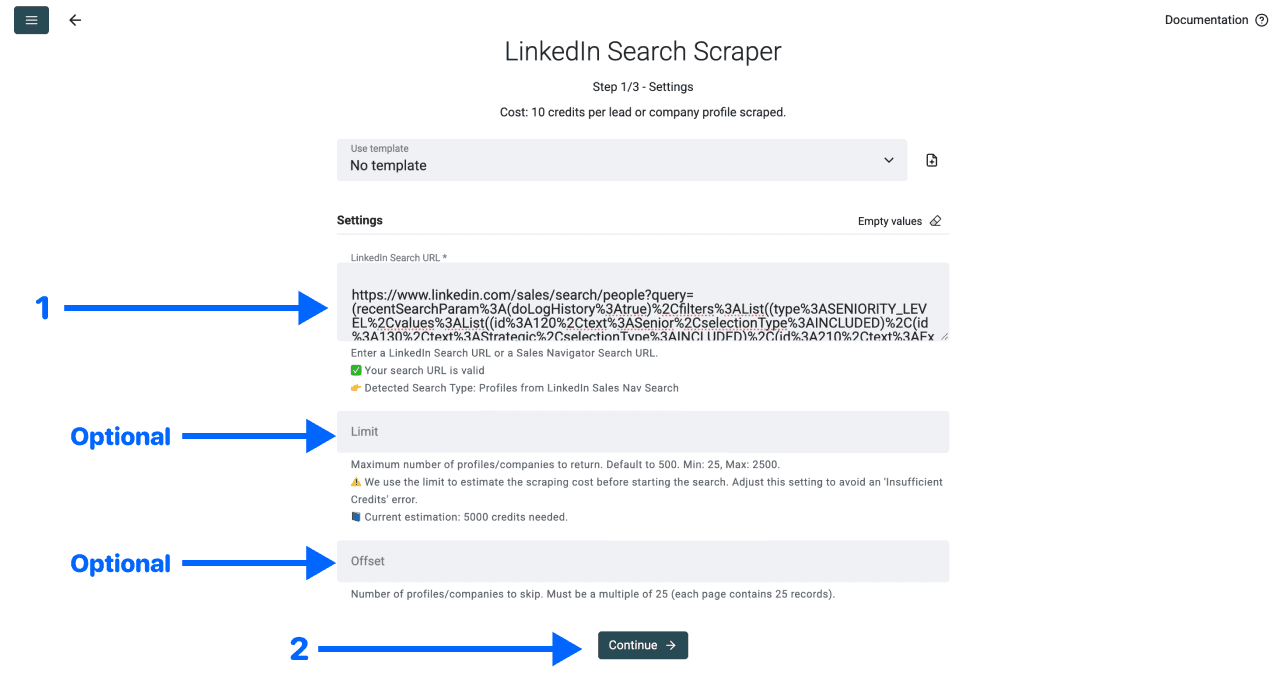
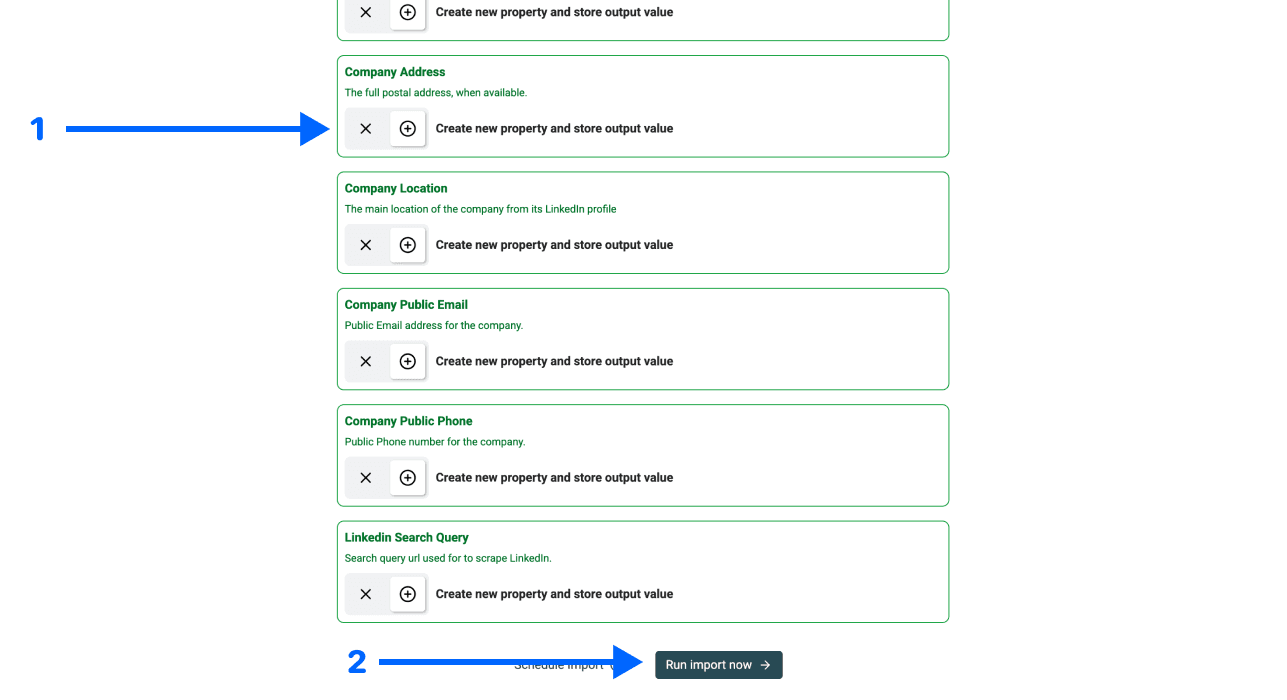
Choose Scraping Mode, paste the URL into LinkedIn Search URL and set Limit. Review the credit estimate and any validation error. Use Offset only when it is offered for your selected search and mode; leave it empty for the first sample. Click Continue.
Step 4: Choose useful output columns
Keep identity fields such as the LinkedIn profile URL or internal ID, plus name, job title and company details you need. Map the outputs to collection properties. The available output schema depends on the mode and search type, and individual fields can be empty. A large output schema does not guarantee that every profile has every field.
Step 5: Run and inspect the sample
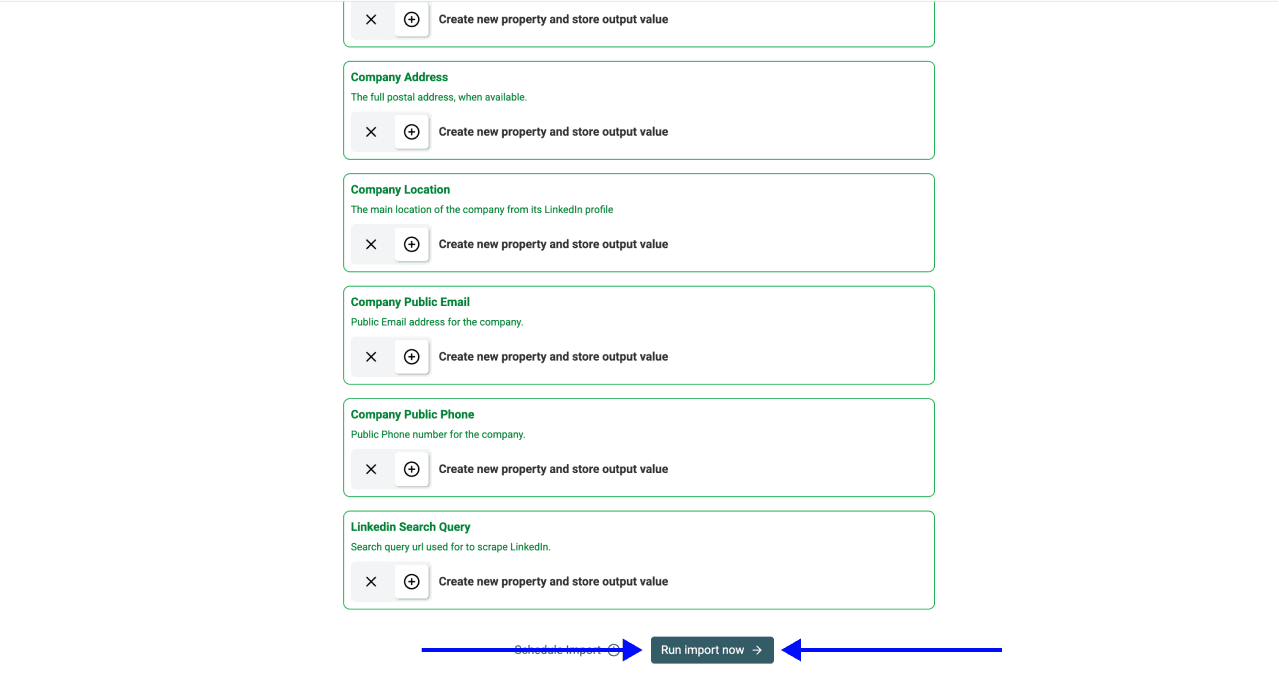
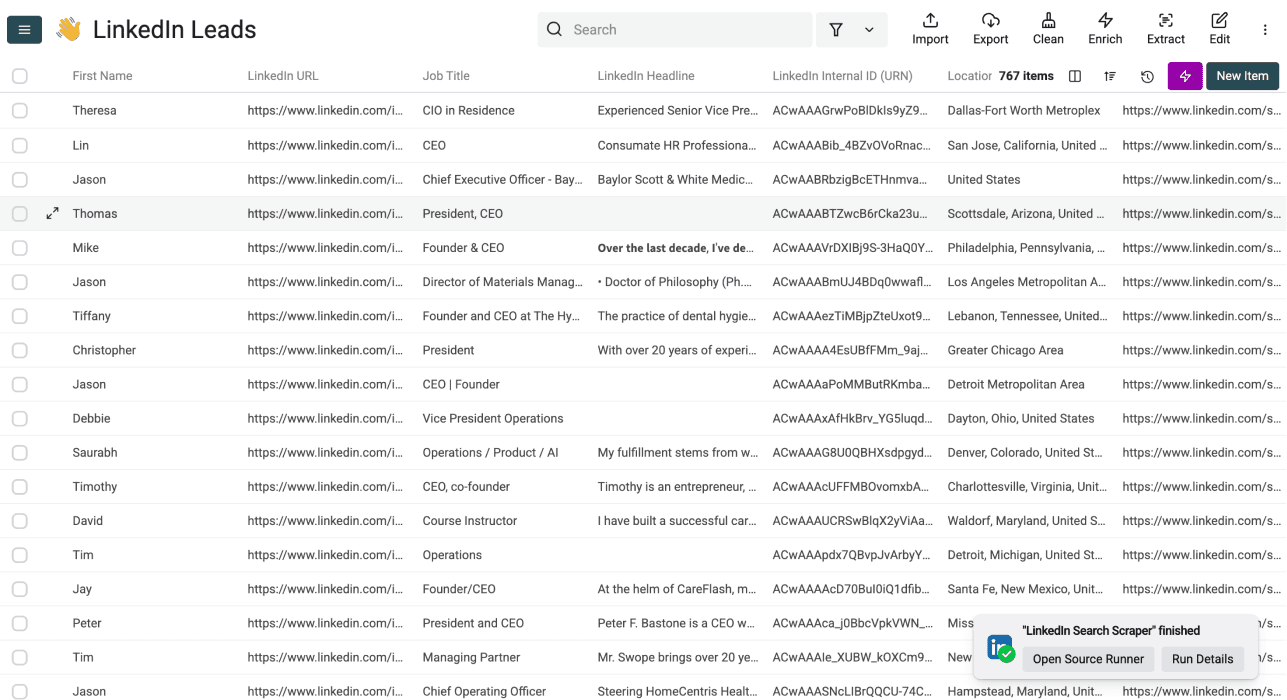
Click Run import now. After the run, check whether the returned roles and locations match the search, whether company information is present and whether identifiers repeat. Investigate a smaller-than-requested result set before repeating the same search.
Email fields may be available in the default mode, but a blank value is not a failed profile export. Use the separate email lookup from profile URLs when needed and review its own settings and credit cost.
Review the fields, then download the file
Profile outputs can include names, profile identifiers, location and job information. Company outputs can include name, domain, industry and employee range. Review the fields actually returned rather than assuming a fixed number of populated columns.
To inspect one record separately, use the LinkedIn Profile Scraper. This single-profile utility is separate from the search import.
Download Sales Navigator leads as CSV or Excel
- Clear collection filters if you need all imported rows; keep them if you intend to export only the matching subset.
- Click Export in the collection header and choose CSV or Excel in Export Format.
- If some properties are hidden, choose Export all properties or Export only visible properties deliberately. Keep the profile identifier for later matching.
- Click Export and open the downloaded file. Compare its record count and columns with the collection view.
For an illustrative sample of 100 imported profiles, suppose 12 are outside your segment and 8 repeat an accepted profile ID. You would retain 80 unique matching profiles before a CRM import. Those numbers describe the review calculation, not an observed result. Check missing emails separately; do not equate a nonempty profile row with a contactable prospect. The export documentation covers selected rows and additional options.
Keep a reviewed export you can reuse
Save the source URL, selected mode and collection date with your CSV or Excel file. A reusable export has stable identifiers, checked targeting and clearly identified missing fields. Start another segment only after the sample meets those checks.
Frequently asked questions
How much does the profile import cost?
The current rates are 20 credits per profile in the default mode and 10 using your LinkedIn account. Separate enrichments have their own costs. Datablist’s file exports are free; the source import consumes credits. Check the source estimate and current plan before starting.
How long does a 1,000-lead import take?
There is no fixed duration. Check run progress and test a small segment first. The requested limit is a maximum, so compare the returned count with your targeting and available results.
Which URLs can I use?
Use a supported Sales Navigator lead-search URL or regular LinkedIn people-search URL. The source validates the format for the chosen mode. This guide covers people, not company-search exports.
Can I find missing emails and phone numbers afterwards?
Yes. Run the relevant enrichment on accepted rows after checking the profile and company identity. Treat finding contact data as a separate step, with its own input requirements, statuses and credit use.
Can I export a regular LinkedIn search?
Yes, the source supports regular search URLs as well as Sales Navigator searches. Check the detected search type and available settings; Offset is not offered for regular people searches.
How does the default mode differ from an account-based export?
The default Datablist mode does not ask for your LinkedIn cookie. The optional account mode does. Compare the actual authentication requirements of any tool; running on a server alone does not tell you whether your account is involved.
Do I need to write code?
No code is needed for this source workflow. You configure the search URL, mode, limit and outputs, then review the resulting collection and download the file.
Do I need a Sales Navigator subscription?
You need access to Sales Navigator to build a Sales Navigator search. A supported regular LinkedIn people search is another input option; its filters and search results differ.
Can I do a small export manually?
For a small set of records, manual entry may meet your needs. Check the data fields and permissions you require. For a source import in Datablist, check available trial credits and the displayed estimate rather than assuming an arbitrary search is free.
Can a tool guarantee an undetectable export?
No. A mode without your cookie explains a credential requirement; it does not prove what LinkedIn can detect or approve.
How many profiles can I request per run?
The current Datablist source limit is 25 to 2,500, defaulting to 500. Available search results can be fewer. Split broad audiences into reviewed segments and remove duplicate profile identifiers before combining the files.
Can Datablist promise my account will never be restricted?
No. Review the chosen mode and LinkedIn’s rules before using a scraping workflow. If your account has a restriction, use LinkedIn’s offered review process and the factual recovery guide linked above.