To filter a CSV file, import it into Datablist, choose a property condition or search term, and export the filtered items. For example, a lead list with Country, Status, and Email columns can be narrowed to contacts in France whose status is New. Filtering selects rows for review or export; it does not delete the other rows from the collection.
Step-by-Step Guide to Filter CSV Files
Step 1: Load Your CSV File
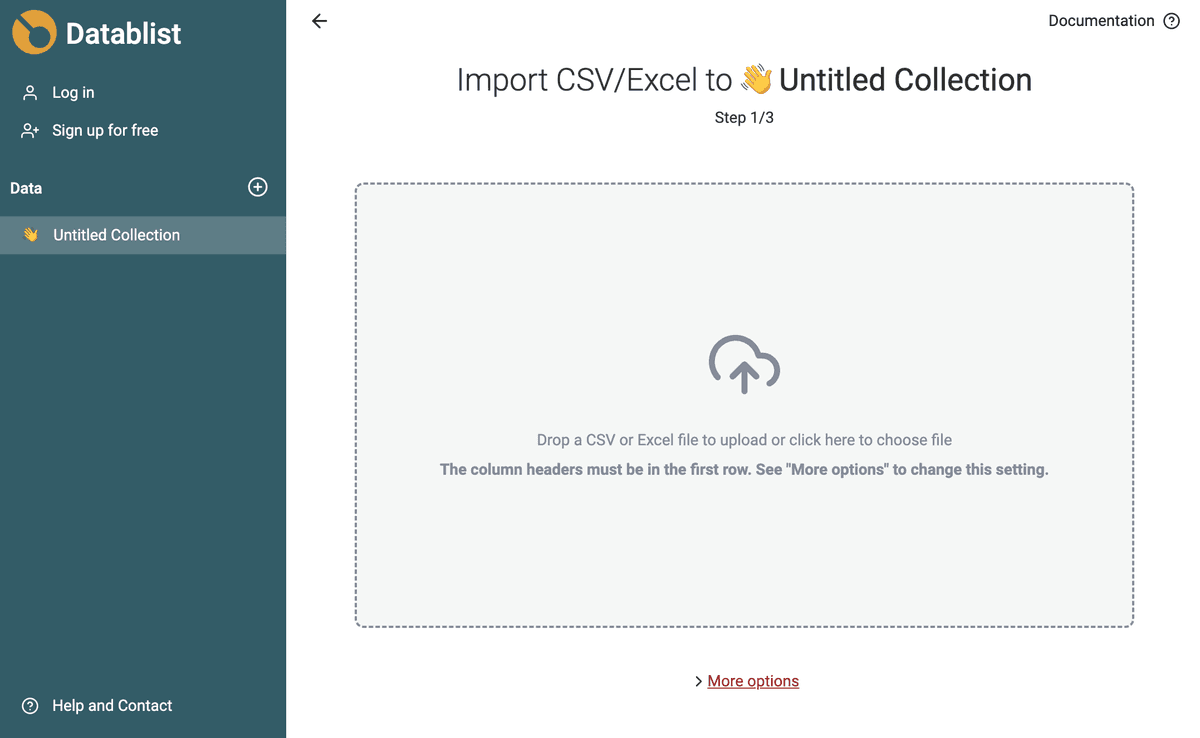
Load the file in Datablist's CSV editor. Check that the first row became headers and that values appear under the right columns before creating a filter.
Create a new collection ("+" button in the left sidebar) and then click "Import CSV" to load your file.
Step 2: Apply filters
Datablist offers two ways to filter your data:
- Property filtering - Define filter criteria on one or several properties
- Full-text search - Will match any rows in your CSV that contain the keyword
Property Filtering
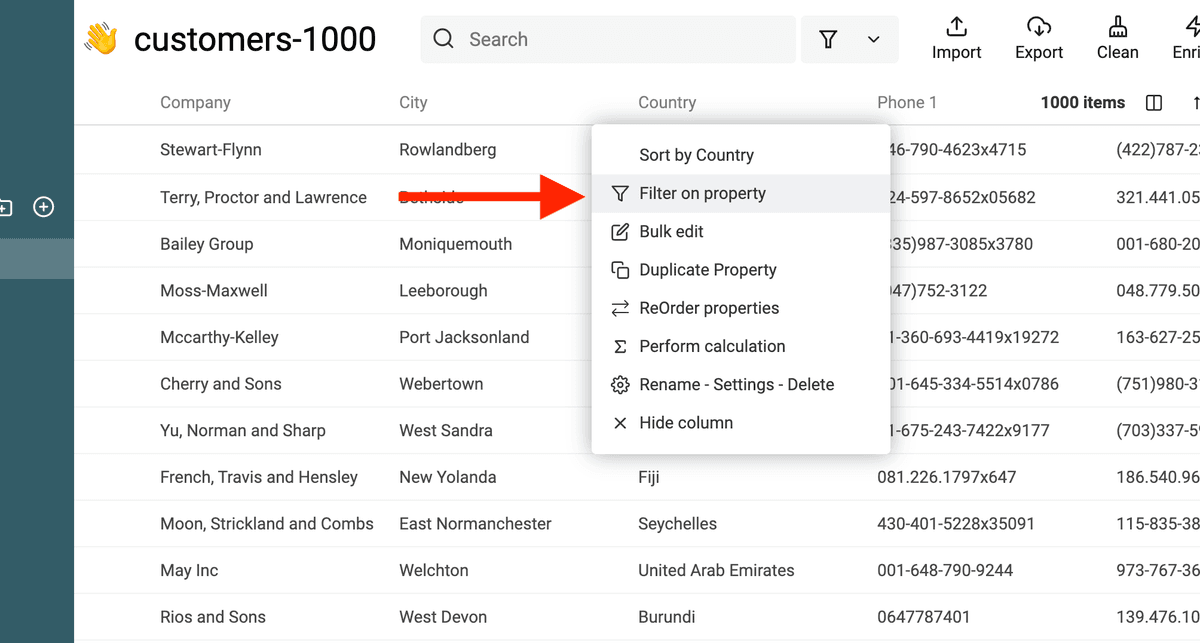
Once the CSV file is loaded, add filters by clicking on a property header.
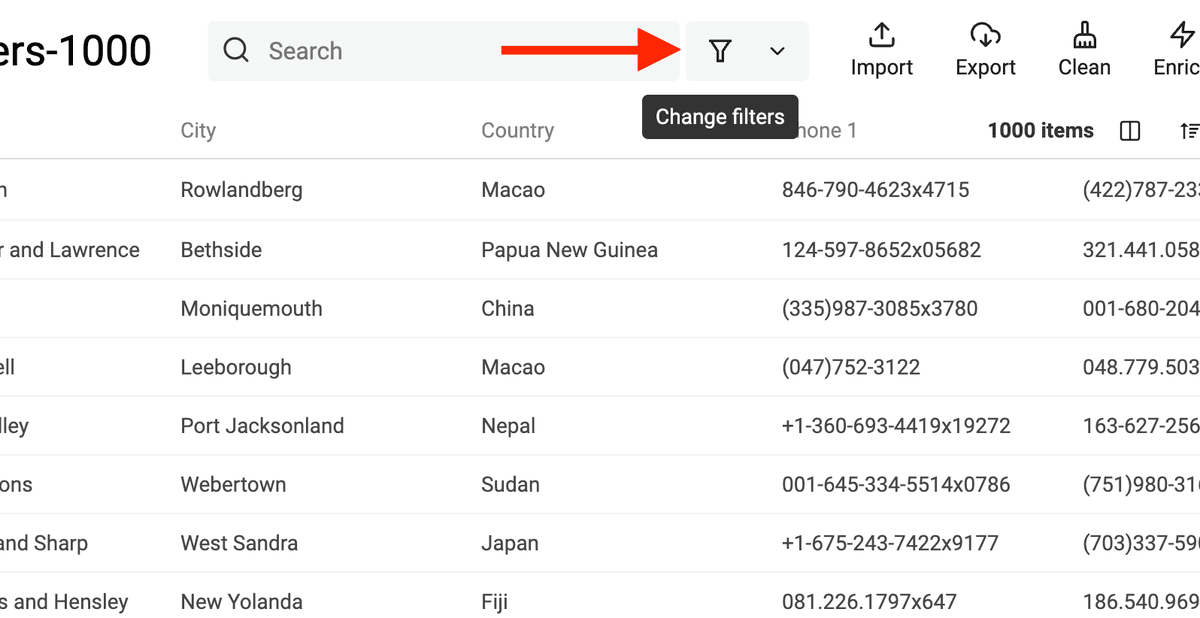
Or just open the "Filtering" tool.
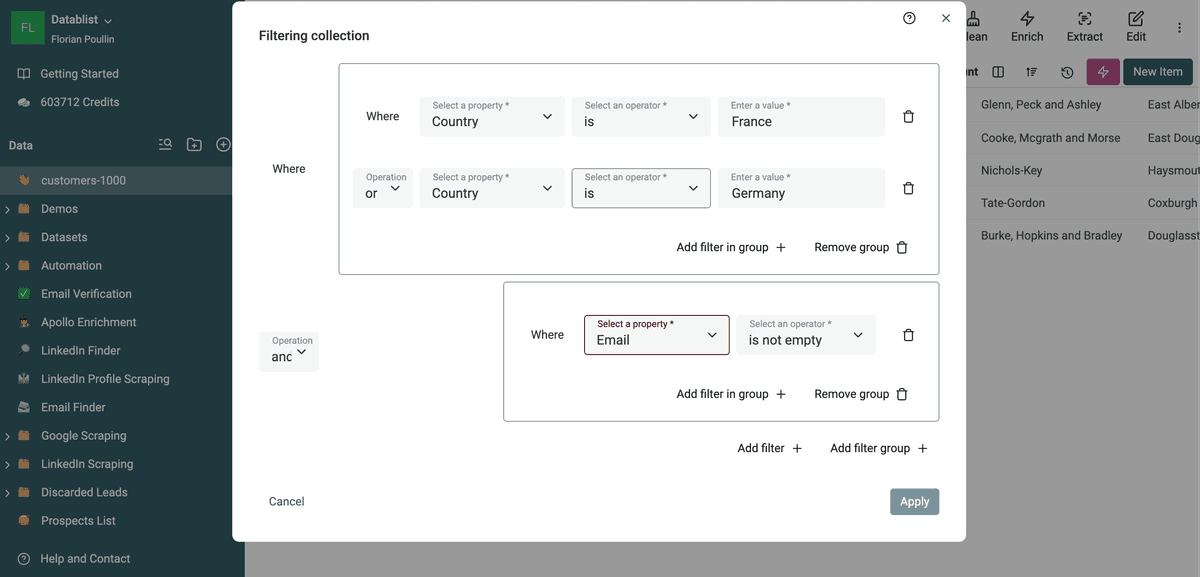
This opens the "Filtering" modal. Define your filter operators to select or exclude specific data.
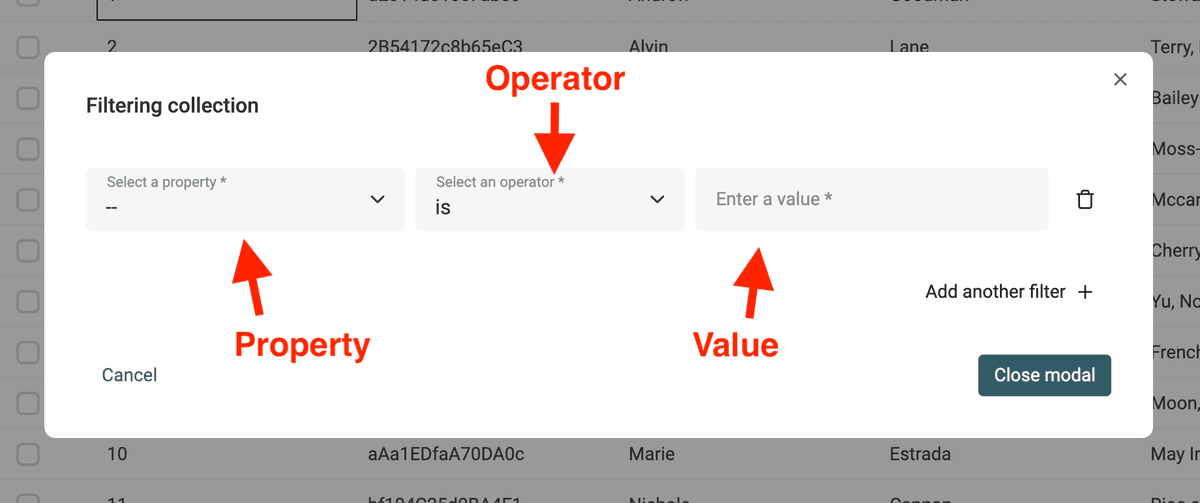
List of filter operators for Text:
- is - Insensitive equal comparison. Leading and trailing spaces are not removed.
HeLLoandhellomatch (case insensitive)- " john " (notice the spaces) and
johndon't match
- is not - Opposite of "is".
- contains - Insensitive text contains.
- The value
john@GMAIL.comwith the "contains" filtergmailmatches
- The value
- does not contain - Opposite of "contains".
- startswith - Insensitive text starts with
- The value
+3302934092309with the "startswith" filter+33matches - The value
JOHN doewith the "startswith" filterjohnmatches
- The value
- endswith - Insensitive text ends with
- The value
john@GMAIL.comwith the "endswith" filtergmail.commatches
- The value
- in - Return items that match at least one of the comma-separated values. The comparison is case-insensitive.
- If the "in" filter is "France, Italy, Germany, USA". An item with the value "italy" matches.
- not in - Return items with values that match none of the comma-separated values. The comparison is case-insensitive.
- If the "not in" filter is "France, Italy, Germany, USA", an item with the value "belgium" matches.
- is empty - Match on empty or only spaces text values
- " " (spaces) match
- "" match
- is not empty - Opposite of "is empty".
- regexp - Insensitive Regex matching. See below.
List of filter operators for DateTime:
- is before - Compare the DateTime value with an absolute date and time.
- is before - relative - Check Relative datetime filtering
- is after - Compare the DateTime value with an absolute date and time.
- is after - relative - Check Relative datetime filtering
- is empty - Empty DateTime value
- is not empty - Opposite of
is empty
List of filter operators for Numbers:
- = - Equal to
- ≠ - Not Equal to
- < - Less than (strict) - Equal numbers don't match
- > - Greater than (strict) - Equal numbers don't match
- ≤ - Less than or equal to
- ≥ - Greater than or equal to
- is empty - Empty cell. 0 doesn't match.
- is not empty - Opposite of
is empty
For the lead-list example, set Country to France and Status to New, then combine the conditions with AND. Use OR when either condition is enough. If Status contains inconsistent labels, count its distinct values before filtering so you know which labels to include. See how to combine filter conditions.
Full-text search
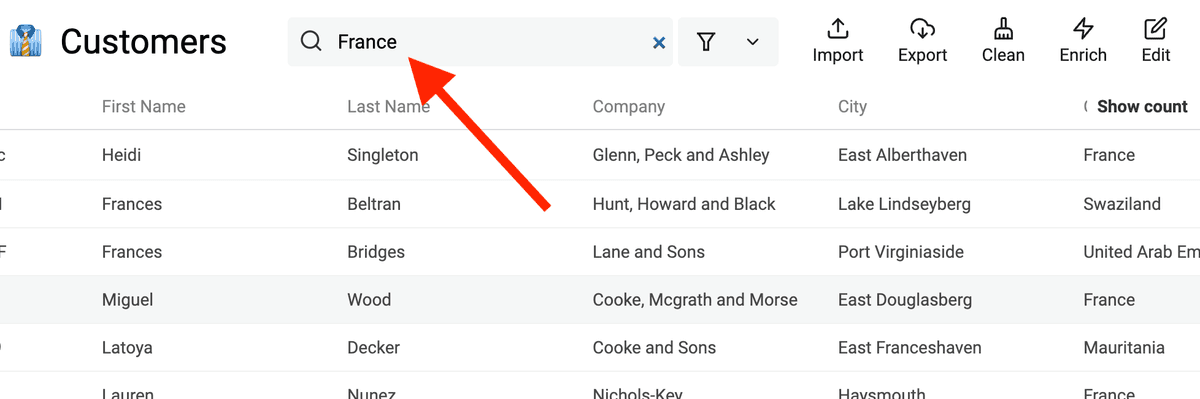
Filtering your items using full-text search is simple. Datablist performs a full-text search on all of your item property values in seconds.
The search input is located in the collection header. A fast way to start a search is using the keyboard shortcut Ctrl + f.
Step 3: Export the filtered CSV data
Check the visible row count and a few examples before downloading. Click Export > Export filtered items to download only the rows in the current view. Export all items includes rows hidden by the filter, so choose the filtered option for a smaller CSV.
FAQ
What is a CSV file?
CSV (Comma Separated Value) files store structured data in text files, with each line representing a data record and fields separated by commas, semicolons, or tabs. They are widely used for transferring data between applications due to their simplicity. However, because the CSV format isn't standardized, encoding, delimiters, and escaping rules can vary. Most applications offer different options for reading CSV files. More about CSV files.
How much does it cost to filter a CSV file?
Datablist provides filtering features for free. Some advanced filtering operators such as RegEx, In, Not-In filterings, require a paid plan. See pricing.
Why Filter CSV Files?
CSV (Comma-Separated Values) files are widely used for storing and transferring data. However, raw CSV files often contain irrelevant or messy data. Filtering allows you to:
- Isolate rows that match your criteria without deleting the rest
- Review outliers or missing values before a cleanup
- Export a segment for analysis or follow-up