To export selected Excel cells to a CSV file, copy them to a new worksheet, make that worksheet active, and save it as CSV UTF-8. Excel saves the active sheet as CSV, so placing your selection on its own sheet keeps the rest of the workbook out of the export.
These steps use the Excel desktop app. If you need only rows or columns that are visible after filtering or hiding, choose Visible cells only before you copy.
Step 1: Copy-Paste selected cells
Select the cells you want to export. Include the header row if the destination app expects column names. If your selection has no hidden or filtered cells, copy it now (Ctrl+C on Windows or ⌘+C on macOS). Otherwise, use the next step before copying.
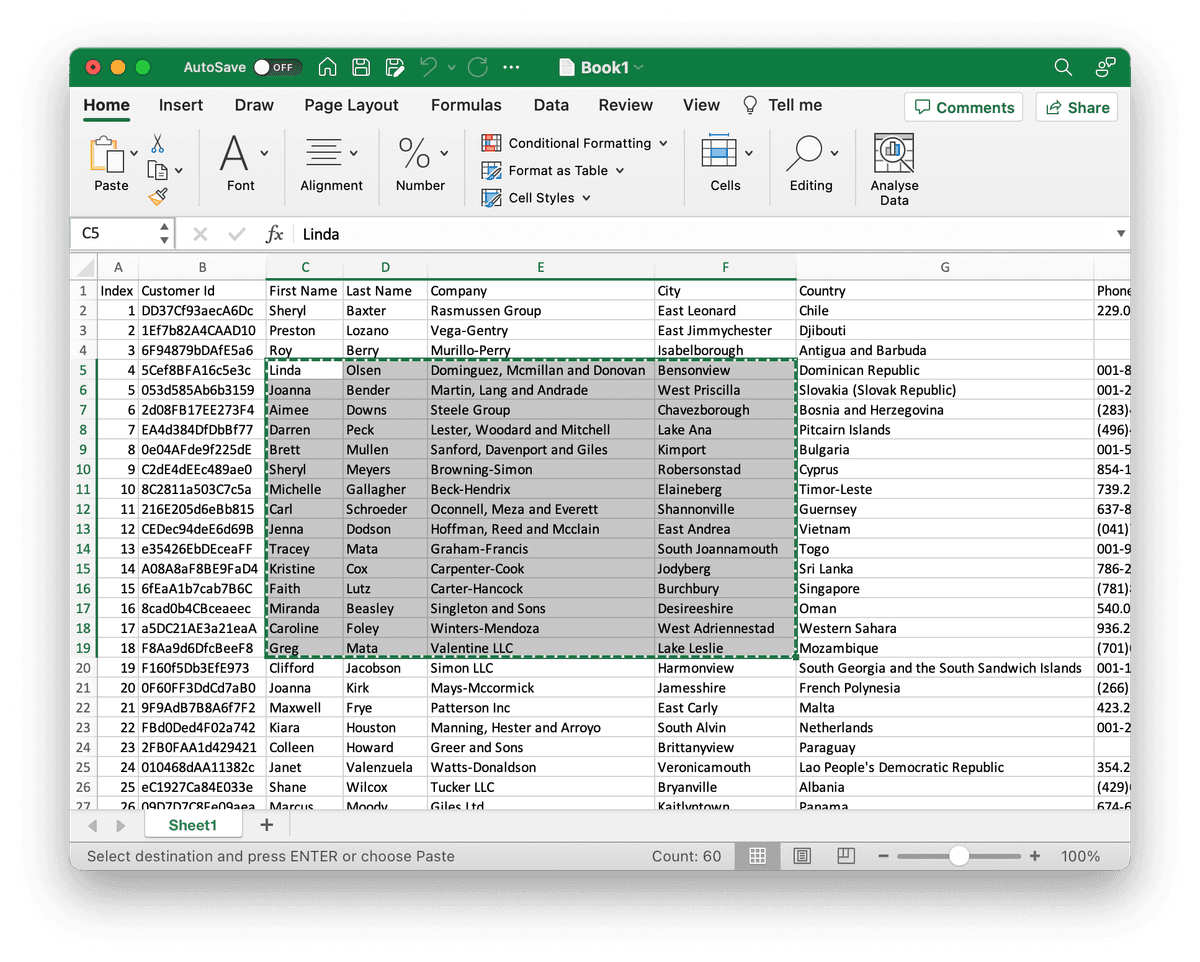
Export only visible cells (without hidden columns)
If you have hidden columns, Excel will add their content to your clipboard. This is not what we want. We want to export only our selected and visible cells.
In the Excel desktop app, select the range, then choose Home > Find & Select > Go To Special > Visible cells only > OK. Copy the selected visible cells after this step. Excel for the web does not provide the same visible-cells-only option for a normal range; open the workbook in the desktop app if hidden values must stay out of the CSV.
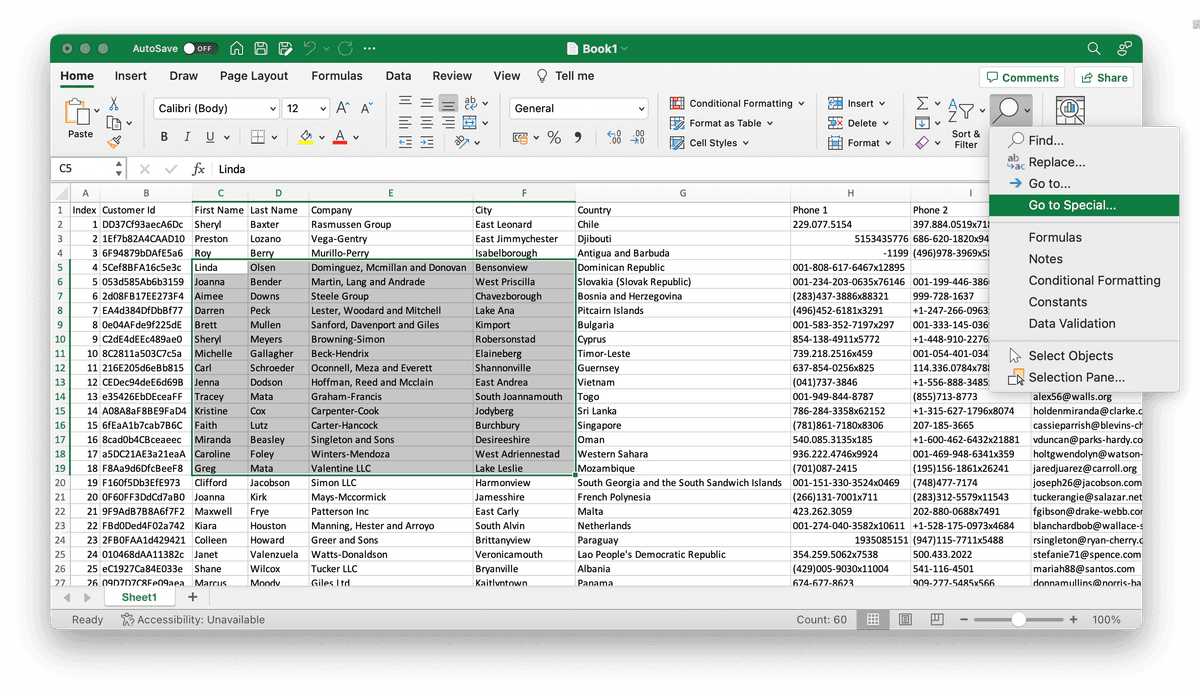
This keeps hidden or filtered rows and columns out of the copied range.
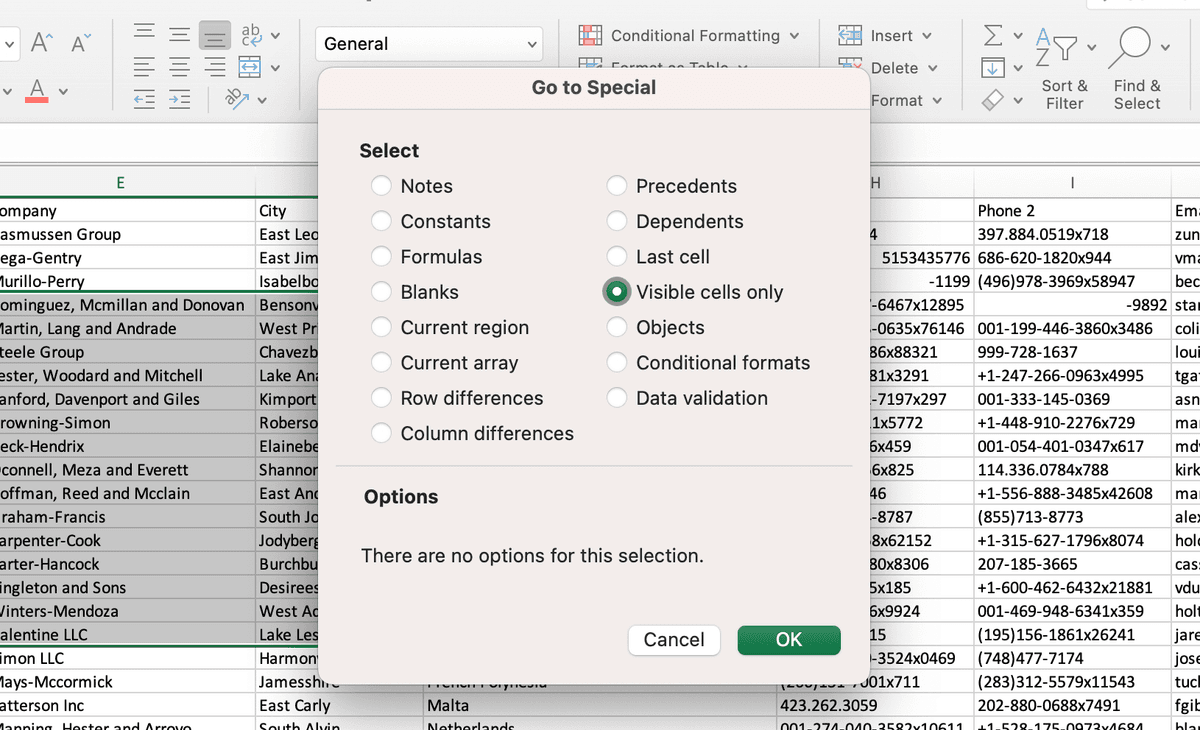
Step 2: Create a new sheet and paste your data
Create a new worksheet and paste the copied cells into its top-left cell. Check that the pasted rows and columns contain only the data you want to export.
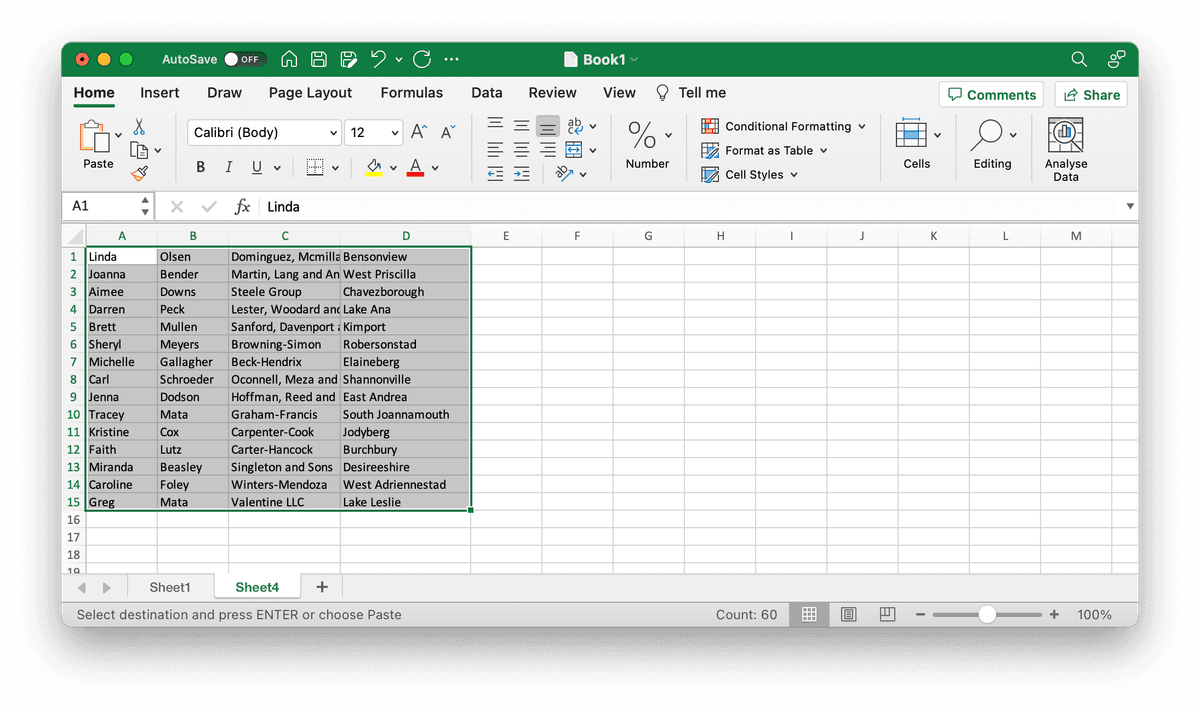
Add columns to have CSV headers
CSV files are used to store structured data, and CSV headers add context to know what your CSV contains.
CSV headers are optional. But if you need to import your CSV into another software or clean it with a CSV editor, you better have them.
Just copy - paste the columns from the first sheet or write them directly as the first line in the new sheet.
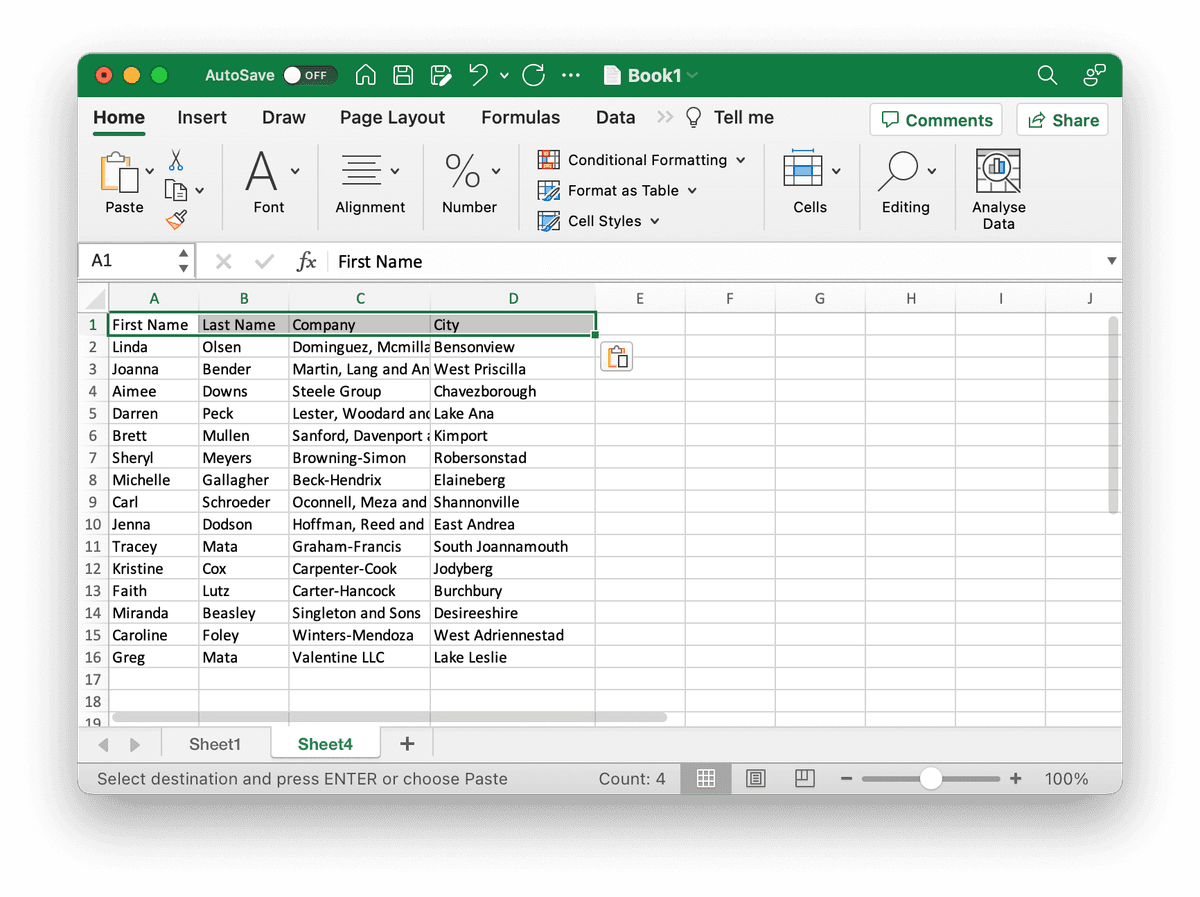
Step 3: Export sheet to CSV
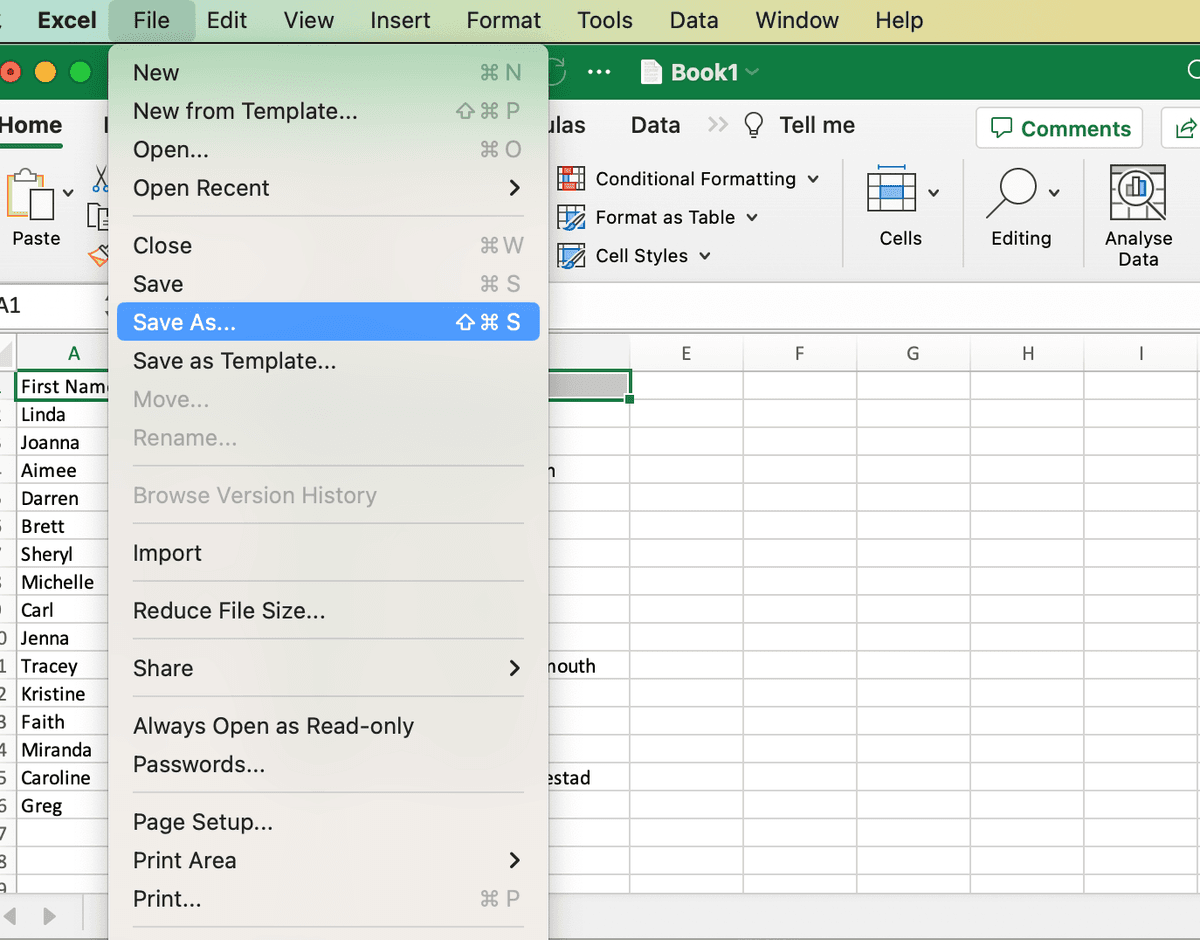
The last step is to export the new Excel sheet to a CSV file. Once you are on the new sheet, select Save As in the File menu.
Important: Set the active sheet to the sheet to export!
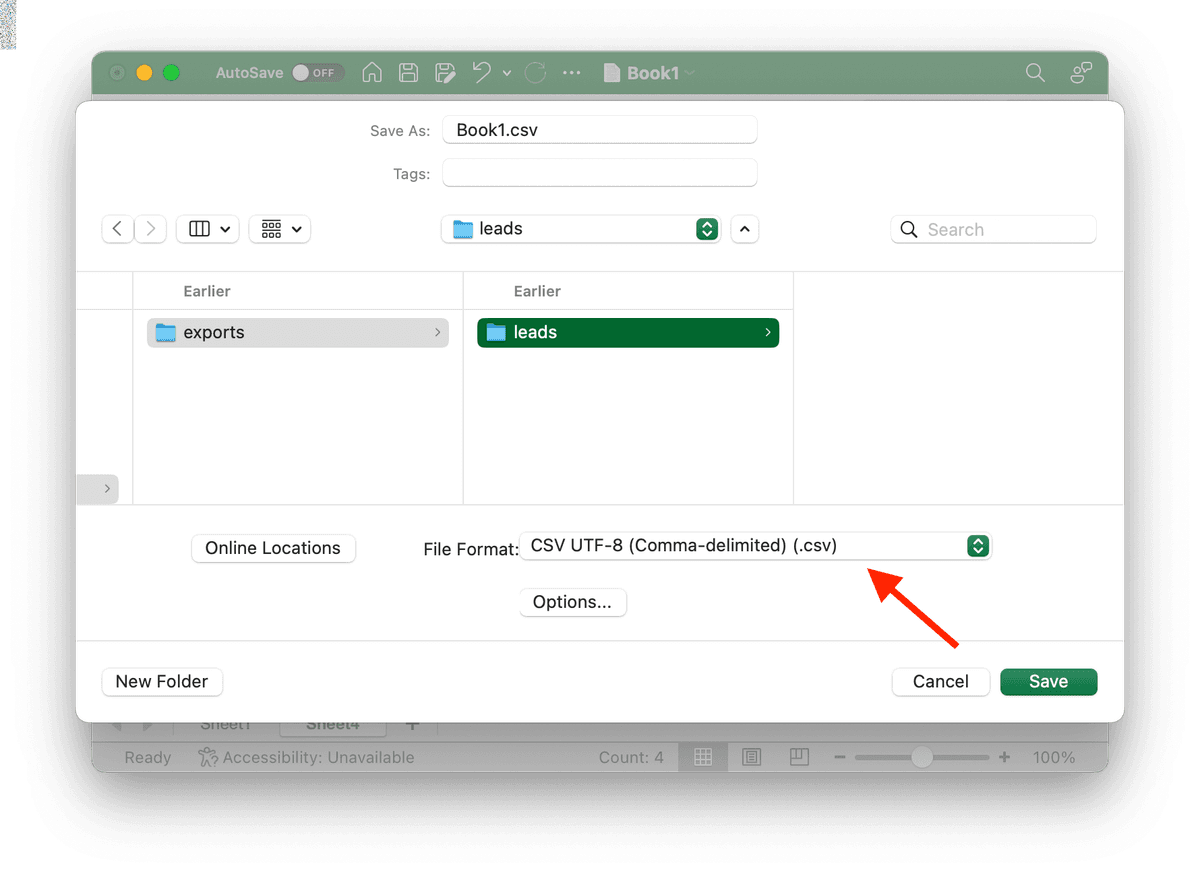
Then choose CSV UTF-8 (Comma-delimited) (.csv) as the file format and select Save. This format helps preserve characters such as accents; see CSV encoding if the saved file displays broken text.
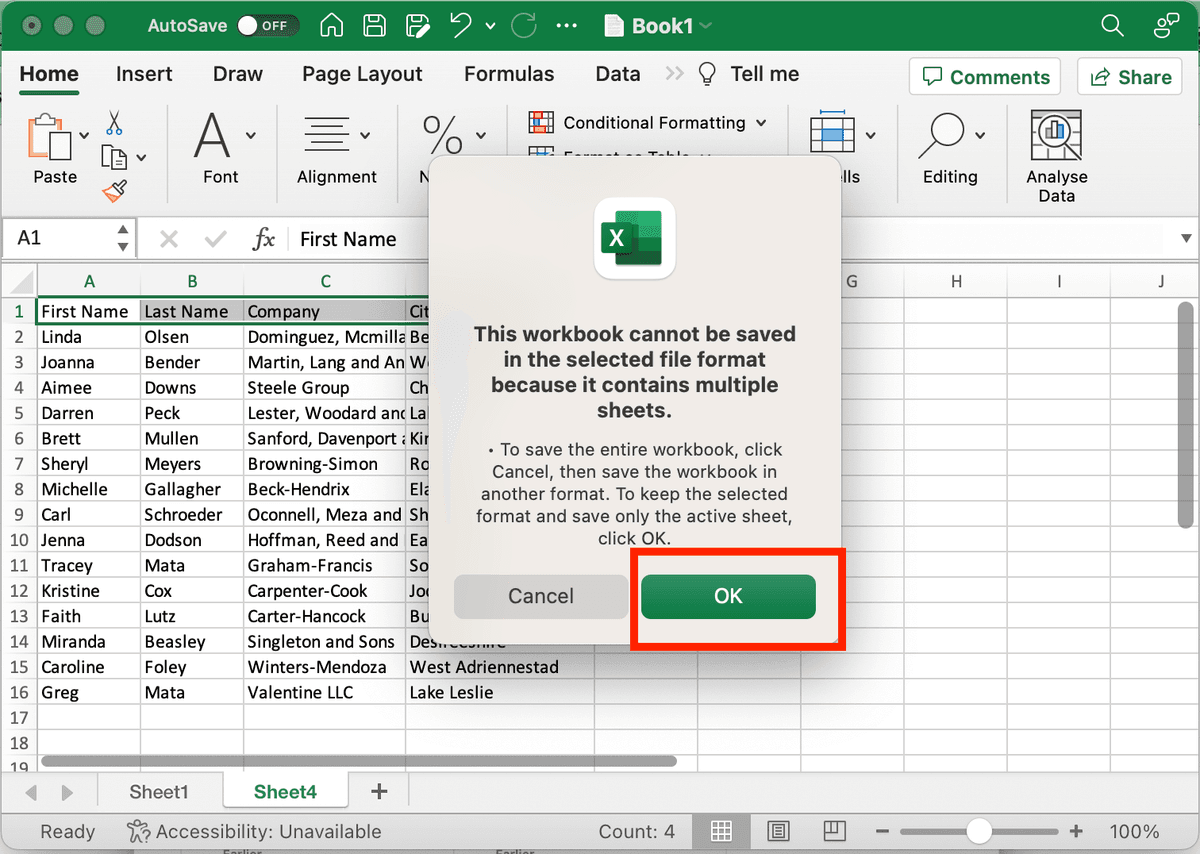
A warning message will pop up with the message "This workbook cannot be saved in the selected file format because it contains multiple sheets.".
Confirm the warning after checking that the new worksheet is active. Excel saves only that sheet in the CSV. Reopen the CSV and check its headers, row count, and a few values before importing it into another tool.
Edit it with a CSV Editor
If you need to further clean your CSV data, use a CSV Editor such as Datablist.
Datablist provides advanced tools to deduplicate data, consolidate several CSV files, or clean your data.